

Monitor Not Detecting 144Hz? Fix the Port, Cable, Settings and Driver
Check what Windows is really sending, match your port and cable to your resolution, clear monitor-menu, driver and dock limits, and try custom modes with a way back.
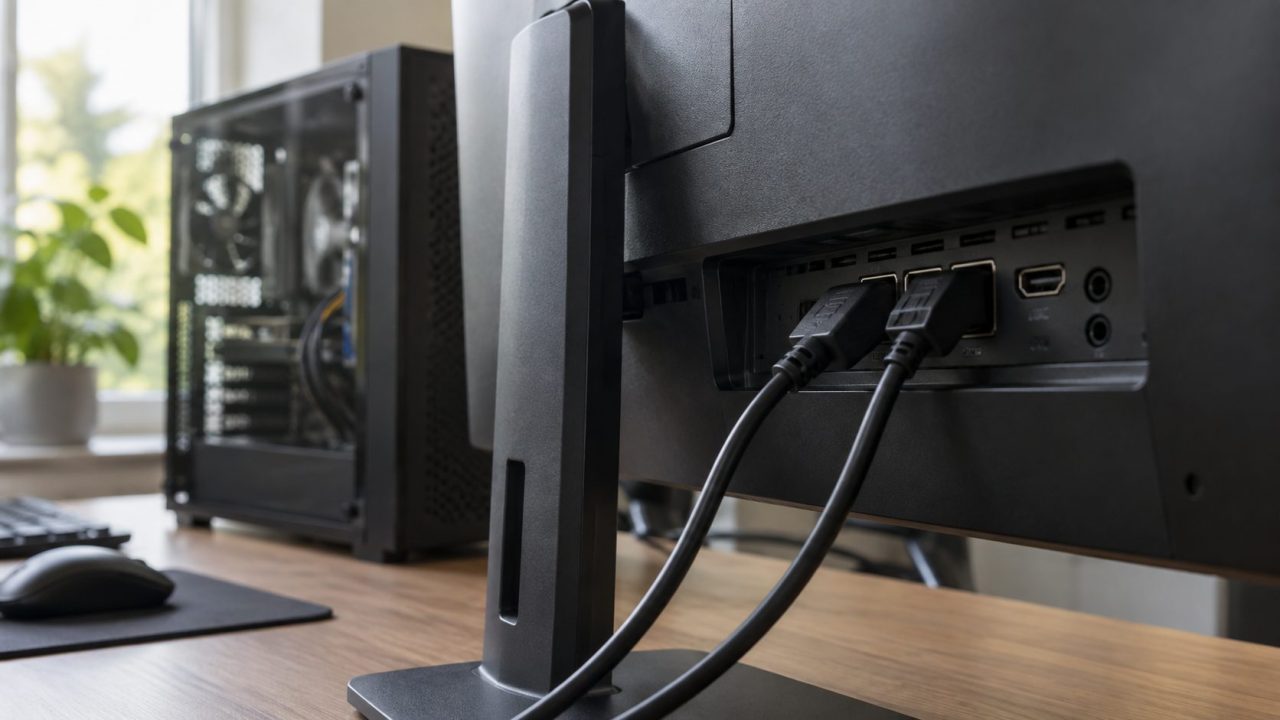
A monitor not detecting 144Hz usually isn’t a broken panel. Something between the graphics card and the screen can’t carry that rate at your resolution: the port, cable, an adapter, the monitor’s menu or the driver. Start with what Windows is sending, then work down the chain, cheapest first.
Monitor Not Detecting 144Hz? Read What Windows Is Sending First
Quick fix: plug into the input your manual rates for 144Hz (often DisplayPort), then open Settings > System > Display > Advanced display, select the monitor and pick 144Hz under Choose a refresh rate. If 144Hz is missing or has an asterisk, something in the chain is limiting the signal.
The Display information panel there shows the mode Windows really sends and whether the screen supports variable refresh rate (VRR). An asterisk (*) next to 144Hz means your current resolution can’t use it: a monitor not detecting 144Hz at native resolution but offering it lower is short on bandwidth.
Then the basics: connect directly with one cable (no dock, KVM or adapter), reseat both ends and restart both devices. If the screen is missing, click Multiple displays > Detect; if Device Manager shows Microsoft Basic Display Adapter, jump to the driver section.
On a desktop, plug into the graphics card’s ports (usually lower on the back), not the motherboard’s, which run from the processor’s integrated graphics and may have lower limits. The card’s port version counts too: an older card’s HDMI 1.4 port can’t carry 1440p at 144Hz.
Which Port and Cable Can Carry Your Resolution at 144Hz
Often a monitor not detecting 144Hz has run out of bandwidth: resolution, refresh rate and color depth all add data, and each link version has a ceiling.
Column headers show usable capacity after encoding overhead; “Needs” figures are our estimates (8-bit color, reduced-blanking timing), and real monitors vary.
| Mode (8-bit) | Needs (Gbps) | HDMI 1.4 (~8.2) | HDMI 2.0 (~14.4) | HDMI 2.1 (~42.6) | DP 1.2 (~17.3) | DP 1.4 (~25.9) |
|---|---|---|---|---|---|---|
| 1080p 144Hz | ~8.0 | Depends | Yes | Yes | Yes | Yes |
| 1440p 144Hz | ~14.1 | No | Often | Yes | Yes | Yes |
| 1440p 165Hz | ~16.3 | No | No | Yes | Yes | Yes |
| 3440×1440 144Hz | ~18.8 | No | No | Yes | No | Yes |
| 4K 144Hz | ~31.4 | No | No | Depends | No | DSC |
An “HDMI 2.1” label alone doesn’t promise 48 Gbps: some ports run at 24 or 32 Gbps, or at HDMI 2.0 speeds. If a 4K monitor not detecting 144Hz is on HDMI, check both spec sheets for the FRL rate or an explicit 4K 144Hz over HDMI line.
HDMI.org lists 1080p at 120Hz for HDMI 1.4b, so 144Hz over HDMI 1.4 depends on the monitor. At 10-bit or HDR, 1440p 144Hz needs about 17.6 Gbps, beyond HDMI 2.0, and 4K 144Hz on DP 1.4 needs Display Stream Compression (DSC). On DVI, 1080p 144Hz needs dual-link DVI-D; single-link DVI and HDMI-to-DVI adapters stop at 60Hz.
Inputs differ too: the ASUS TUF Gaming VG27AQ (1440p, 165Hz) lists 165Hz on DisplayPort 1.2 but 144Hz on HDMI 2.0. A monitor not detecting 144Hz on one input may reach it on another; check your spec sheet’s per-input limit (ASUS calls it Signal Frequency).
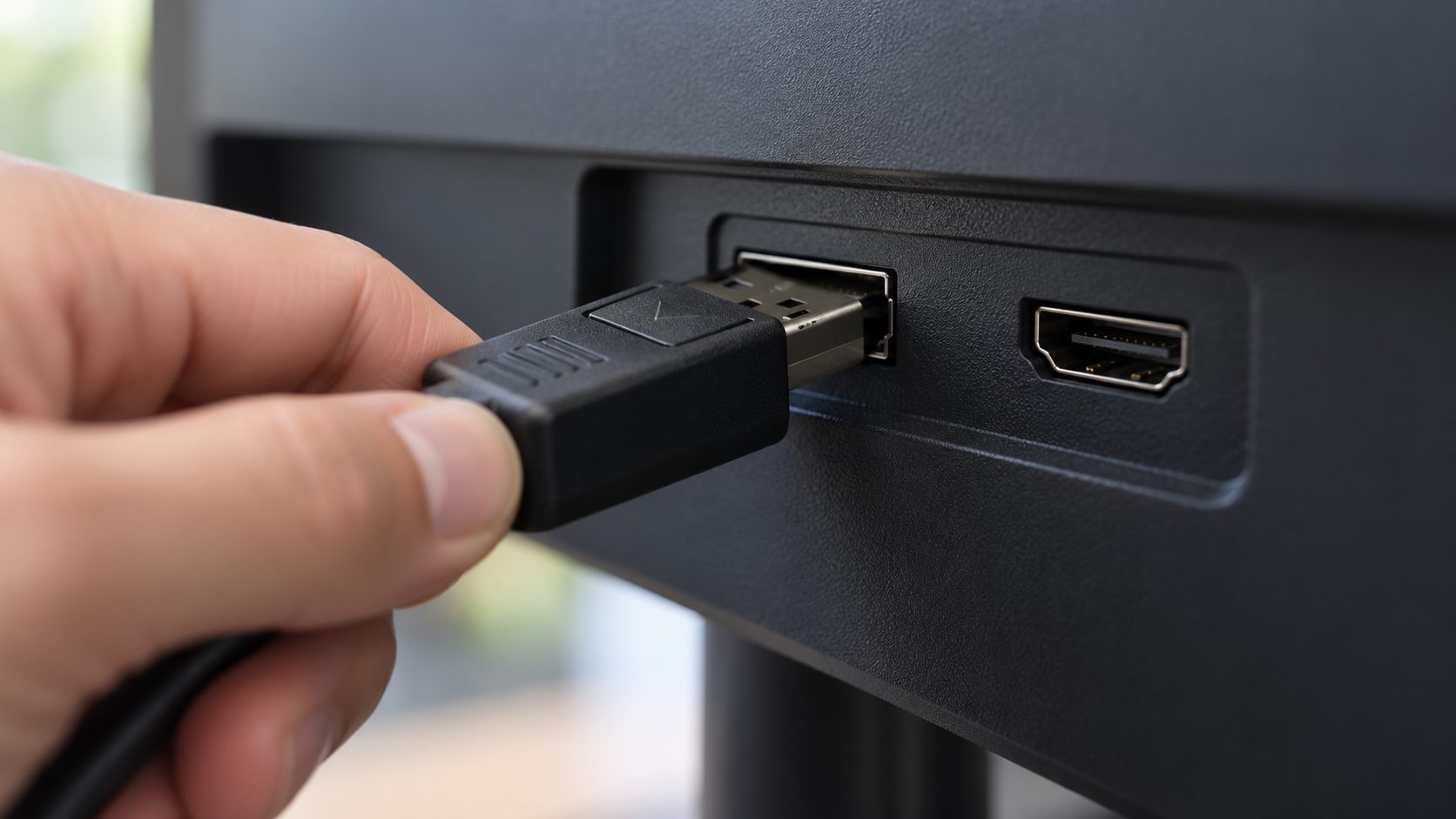
For HDMI, buy a certified Premium High Speed or Ultra High Speed cable and scan its QR label; HDMI.org warns resellers may use their own names. A pricier DisplayPort cable won’t sharpen the picture, VESA says, but a poor one can corrupt it.
Monitor Menu Settings That Hold You at 60Hz
A monitor not detecting 144Hz over a good DisplayPort cable often has its own menu to blame. Labels differ by brand:
- DisplayPort version. Where offered, a lower version caps bandwidth; pick the highest your graphics card supports.
- Overclock or OC. Some models reach their top rate only with this switched on.
- HDMI bandwidth. Some brands put full HDMI bandwidth behind a setting, with names like “Input Signal Plus”.
- Factory reset. Clears a bad menu overclock or a pile of changes.
Set 144Hz in Windows, Then Confirm It in the GPU Panel
Often a monitor not detecting 144Hz is really a monitor left at 60Hz: Windows stores a refresh rate for each screen separately. Microsoft’s refresh rate guide shows each menu.
Pick the right screen and rate
Display > Identify shows which number is which. Windows 11: Choose a refresh rate; Windows 10: Advanced display settings > Refresh rate.
Check the GPU panel
NVIDIA Control Panel > Display > Change resolution: pick the resolution under PC (not Ultra HD, HD, SD), then set Refresh rate.
Turn off Dynamic refresh rate
Shown only on supported VRR screens. Microsoft says it can limit other games’ maximum rate; switch it off if a game stays below 144Hz.
If games still open at 60Hz, set NVIDIA Control Panel > Manage 3D settings > Preferred refresh rate to Highest available. In AMD Software’s Display Settings, Display Specs shows the FreeSync range the monitor reports; one ending at 60Hz suggests the high-refresh mode isn’t arriving.
Short on bandwidth? Trade resolution or color depth
Keeping native resolution on a monitor not detecting 144Hz over HDMI 2.0 often means 8-bit color: NVIDIA Control Panel > Change resolution > Use NVIDIA color settings > Output color depth, or Color Depth in AMD’s Display Settings. A lower resolution also works, but Microsoft notes text may look less sharp.
Generic PnP Monitor and Basic Display Adapter: When Drivers Are the Problem
“Generic PnP Monitor” in Device Manager is normal and doesn’t by itself explain a monitor not detecting 144Hz. Windows reads each monitor’s modes from its EDID data, sent over the cable, and Microsoft notes invalid EDID can cause incorrect display modes.
Makers can ship a monitor driver (.inf file) that overrides a faulty EDID, so install one if your model’s support page offers it. A monitor not identified correctly, or modes missing only through a KVM, dock or adapter, also point to EDID trouble.
Microsoft Basic Display Adapter means no working graphics driver; on UEFI PCs it keeps the boot-time mode, so resolution and mode can’t change. That’s a common reason Windows 11 won’t let you change display resolution, and why a monitor not detecting 144Hz may list only one refresh rate.
Run Windows Update (drivers can sit under Advanced options > Optional updates) or the installer from NVIDIA, AMD, Intel or your laptop maker. If 144Hz vanished after a driver update, use the adapter’s Properties > Driver > Roll Back Driver; otherwise choose Uninstall device and restart.
Laptops, USB-C Docks and Adapters That Cut Bandwidth
An external monitor not detecting 144Hz on a laptop often hits a port limit. Check the spec sheet for the HDMI version, which USB-C ports carry DisplayPort and which GPU drives each one; a slow output can also cap the resolution.
Many laptops wire those ports to the integrated Intel or AMD graphics, whose limits then apply; the monitor may not even appear in NVIDIA Control Panel. On MUX or Advanced Optimus laptops, a discrete-GPU mode in the BIOS, the maker’s app or the NVIDIA App can route the display to the faster chip.
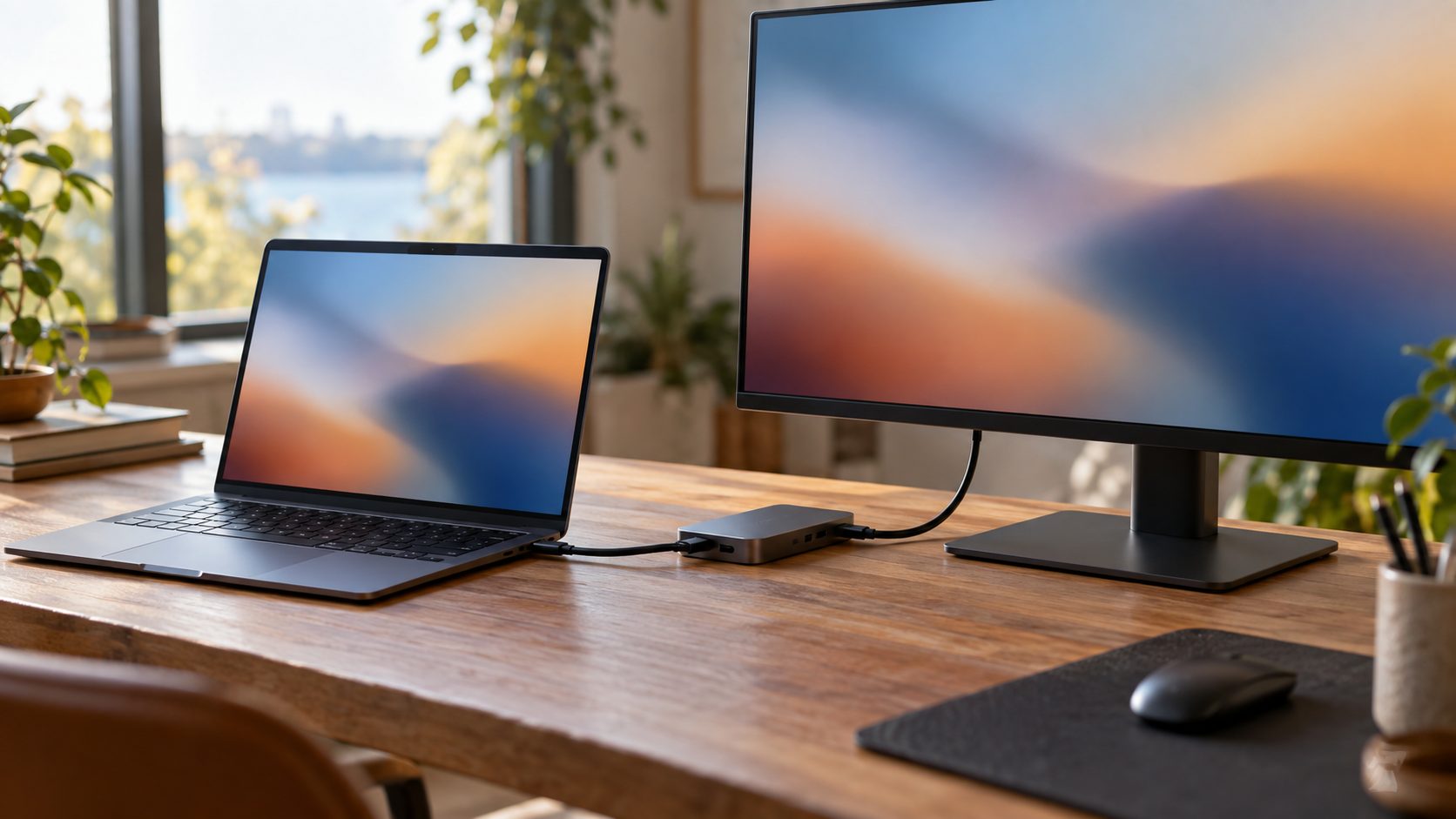
Most USB-C video uses DisplayPort Alt Mode, and a dock that also carries SuperSpeed USB data may leave only two lanes for it, so a monitor not detecting 144Hz through the dock may reach it on a direct cable. DisplayLink docks send video over USB and usually stop at 60Hz; for 144Hz, use a DP Alt Mode or Thunderbolt/USB4 dock that lists the rate. VESA also prefers a USB-C to DisplayPort cable over socket adapters, which may give a poor picture or none.
On Linux with hybrid graphics, see our guide to a monitor not detected on Ubuntu.
Custom Resolutions and Overclocks Without a Stuck Black Screen
If your manual lists a rate Windows won’t offer, a custom resolution can add it. Try it last: of all the fixes for a monitor not detecting 144Hz, it’s the likeliest to leave a black screen.
NVIDIA warns that its “Enable resolutions not exposed by the display” box allows unsupported modes, which may lead to an unusable display or damaged hardware. Leave it unticked and enter only modes your manual lists for that input.
NVIDIA
Control Panel: Display > Change resolution > Customize > Create Custom Resolution. Click Test, and save only if it passes. NVIDIA App: System > Displays > Display Properties > Custom Resolution.
AMD
In AMD Software, type Custom in the search box, open Custom Resolution, then Create New. AMD rejects incompatible values; the screen may blank briefly.
Getting back
Don’t click anything: an unconfirmed change reverts after a countdown (15 seconds in Windows). Win + Ctrl + Shift + B restarts the graphics driver. Still black? Startup Settings option 3, Enable low-resolution video, lets you remove the mode.
Microsoft’s Startup Settings guide shows how to get there; if the drive is encrypted, have your BitLocker recovery key ready.
Monitor Not Detecting 144Hz: Common Questions
Why is my monitor not detecting 144Hz even on DisplayPort?
Usually Windows is still at 60Hz, or 144Hz needs a lower resolution. Otherwise check the monitor’s DP version and overclock settings, and remove docks and adapters.
Can HDMI do 144Hz, or do I need DisplayPort?
It depends on the version. On HDMI 1.4, a monitor not detecting 144Hz at 1080p may be at the port’s limit, while HDMI 2.0 handles 1440p at 144Hz on many monitors. Above that, use DisplayPort or a full-speed HDMI 2.1 port.
Why is my monitor not detecting 1440p or its correct resolution?
In Settings > System > Display, the native resolution should be marked (Recommended). If it’s missing, connect directly without adapters or docks and check Device Manager for Microsoft Basic Display Adapter.
Recap: Port, Monitor Menu, Windows, Driver, Then Custom Modes
For a monitor not detecting 144Hz, work in this order: Display information, port and cable, monitor menu, Windows and GPU settings, driver, and custom modes last.
Picture oversized after lowering the resolution? See our guide to a laptop screen that looks zoomed in, or browse more computer guides.
Leave a comment