

How to Fix WiFi on PS5: Use the Connection Test to Find the Problem
Run the PS5's connection test and fix the first line that fails, from IP and DNS errors to PSN sign-in, slow speeds and NAT Type 3, plus when Ethernet wins.

The fastest way to learn how to fix wifi on PS5 is to let the console tell you what’s broken. Its built-in connection test checks whether the PS5 gets an IP address, reaches the internet and signs in to PlayStation Network, then measures speed and NAT type. Start with the first line that fails.
If phones and laptops are offline too, see Wi-Fi connected but no internet, or router keeps disconnecting if the whole house drops on and off.
Is PlayStation Network Down? Check Before You Change Anything
Open the PlayStation status page on your phone or PC. If it shows an outage or maintenance, no console setting will fix it, so wait.
If the page shows no problems, the fault is on your side, and the rest of this guide shows how to fix wifi on PS5 step by step.
How to Fix WiFi on PS5 With the Built-In Connection Test
Go to Settings > Network > Connection Status > Test Internet Connection. Here’s how to fix wifi on PS5 by test result: match the first line that fails to its fix, then retest.
| What you see | What it means | Go to |
|---|---|---|
| Network not listed or won’t join | Password, band or router mode | Join fixes |
| Obtain IP Address failed | Router gave no address | IP fixes |
| Internet Connection failed | Internet or DNS problem | Internet fixes |
| PSN sign-in failed | PSN or your account | Sign-in fixes |
| All pass, low speeds | Distance, band or congestion | Speed fixes |
| NAT Type 3 or not found | Router restricting connections | NAT fixes |
Before you change anything, do the reset Sony repeats on most of its PS5 network error pages:
Turn the PS5 fully off
Press the PS button, open Power and choose Turn Off PS5. Rest Mode isn’t a restart.
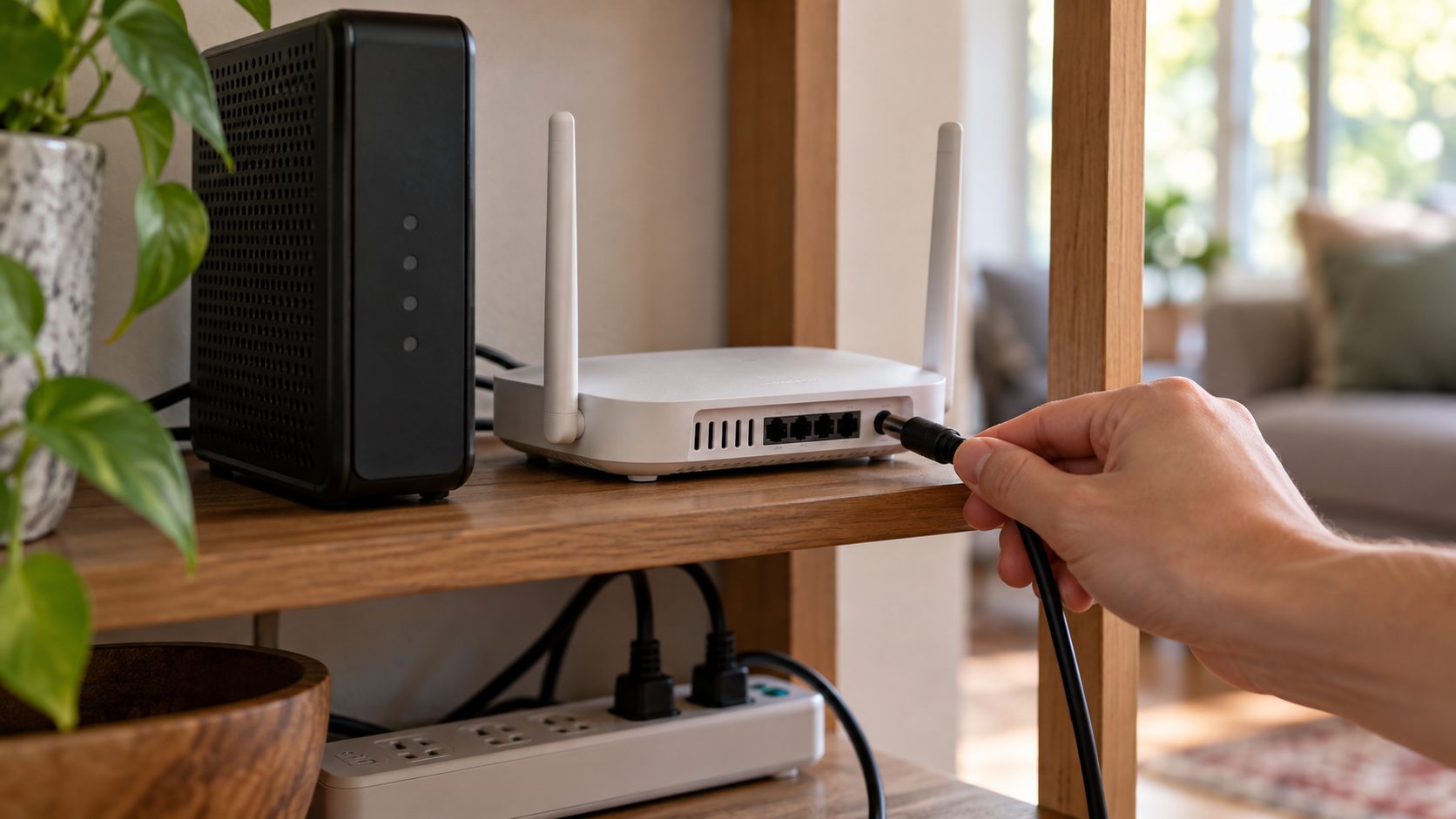
Unplug the router and modem
The whole house goes offline, so warn everyone.
Wait at least 5 minutes
Sony asks for 5 minutes, not the usual 30 seconds.
Power up and retest
Plug in the modem, then the router once the modem’s lights settle, then start the PS5 and retest.
PS5 Can’t Find the Network or Obtain an IP Address
If your phone connects but the console won’t, here’s how to fix wifi on PS5 when the problem is joining the network. Reconnect via Settings > Network > Settings > Set Up Internet Connection, pick your network and select Connect (see Sony’s setup guide), then check:
- Password and security. The PS5 accepts WPA, WPA2, WEP and WPA3; the password and security type must match the router’s.
- Network not listed. Scroll down to Set Up Manually, or use Set Up Using WPS Button on a WPS router.
- Band steering. If both bands share one name, the PS5 can land on the weaker one. Pick a band with Wi-Fi Frequency Bands (see speed fixes) or split the names on the router.
- 6 GHz-only network. Only the PS5 Pro supports 6 GHz, and not in every country. On a standard PS5, join the router’s 2.4 or 5 GHz network instead.
- PS5 Pro. Highlight a Wi-Fi 7 network, press Options, choose Advanced Settings and turn on Multi-Link Operation, as Sony describes. If the connection is unstable, try it off.
- Obtain IP Address failed. Move closer, forget the saved network (press Options on it) and set it up again. Also check that the router’s MAC filtering, device blocking or parental controls aren’t blocking the PS5.
- IPv6-only router. Sony says the PS5 doesn’t support IPv6-only networks; switch the router to use IPv4.
Internet Connection or PSN Sign-In Fails
Internet Connection failed
The PS5 is on your network but can’t reach the internet or resolve names (Sony’s error CE-118527-4). Signal isn’t the issue, so the usual advice on how to fix wifi on PS5, like moving closer, won’t help here.
If you set DNS Settings to Manual, check both addresses for typos. Sony’s timeout error pages also suggest temporarily switching to a free public DNS. To try Google’s, go to Settings > Network > Settings > Set Up Internet Connection, highlight your network, press Options, choose Advanced Settings > DNS Settings > Manual and enter 8.8.8.8 (Primary) and 8.8.4.4 (Secondary). It fixes lookup errors, not speed.
The same pages suggest a static IP, but it isn’t where to start when you’re figuring out how to fix wifi on PS5. A DHCP reservation in the router is safer. Setting it on the console (IP Address Settings > Manual, same screen) also means typing the subnet mask, gateway and DNS, and one typo breaks the connection.
PSN sign-in failed
If only this line fails, your Wi-Fi is fine, and the question is no longer how to fix wifi on PS5 but why PSN won’t let you in. Recheck the status page, confirm your account under Settings > Users and Accounts > Account, and install any update under Settings > System > System Software.
How to Fix WiFi Speed on PS5 When the Test Passes
If every line passes but downloads crawl, the cause is usually distance, band or traffic. Sony’s advice on how to fix wifi on PS5 in that case: move the console closer with nothing in between, or use a cable.
2.4 GHz: range
Longer range and better through walls, but slower, and shared with Bluetooth and microwaves.
5 GHz: speed
Faster and less crowded, with shorter range. For Remote Play, Sony recommends a wired PS5 and 5 GHz on the PS Portal side.
With one name for all bands, go to Settings > Network > Settings > Set Up Internet Connection, wait for the scan, press Options and set Wi-Fi Frequency Bands to 5 GHz, or 2.4 GHz if the console is far from the router.
Compare the PS5’s speed result with a phone test in the same spot; if both are low, pause other downloads or check your plan. If only one game crawls, its server may be slow: press the PS button, open Downloads/Uploads, then pause and resume it.
NAT Type 3 on PS5: Remove Double NAT Before Opening Ports
Type 2 is normal behind a router. Type 3 is strict, so party chat, matchmaking and, Sony notes, Remote Play can fail.
The PS5 has no NAT setting of its own, so the fix starts at the router. Sony’s NW-102468-1 page says: “If you are using multiple NAT routers, please remove them.”
Double NAT usually means an ISP gateway with your own router behind it. Put the gateway in bridge (modem-only) mode or your router in access point mode, turn on UPnP and retest. Bridge mode turns off the gateway’s Wi-Fi and routing, so note your ISP login details first and ask your ISP whether its TV or phone service needs the gateway.
If NAT stays Type 3, Sony lists the ports to open on its NW-102216-2 page and says your ISP can explain how:TCP: 80, 443, 3478, 3479, 3480UDP: 3478, 3479, 49152-65535
Forward them only to the PS5’s fixed address, and don’t use the router’s DMZ option, which exposes the whole console.
When Ethernet Is the Real Fix, and What to Try Last
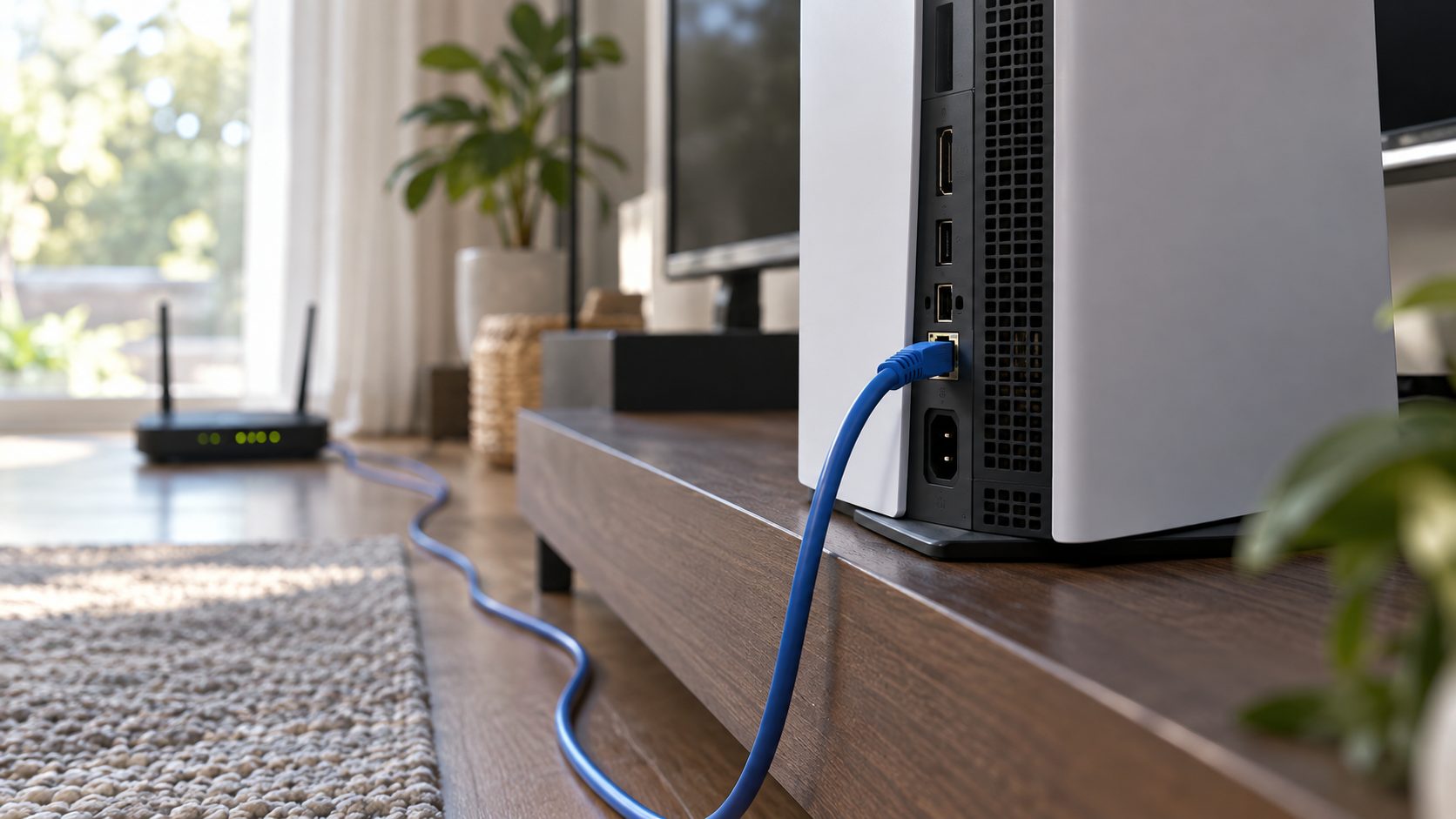
Sony’s PS5 error pages suggest a wired connection whenever possible, and sometimes a cable is the honest answer to how to fix wifi on PS5. Plug it in, then go to Settings > Network > Settings > Set Up Internet Connection > Set Up Wired LAN and select Connect.
Two popular tips often turn up in advice on how to fix wifi on PS5, and neither is likely to help. Sony describes Rebuild Database as a fix for system feature issues and leftover game icons, and a manual MTU only matters if your ISP specifies one, so leave MTU Settings on Automatic.
Safe Mode’s Restore Default Settings resets settings, Wi-Fi included, but keeps games, apps, captures and saves. Reset PS5 deletes all user data, so back up first and leave it for last. For Safe Mode, turn the PS5 off, hold the power button until the second beep, then connect the controller by USB cable and press the PS button.
Still stuck after every step in this guide on how to fix wifi on PS5? Run Sony’s PlayStation Repairs troubleshooter, or call your ISP with your test results.
How to Fix WiFi on PS5: Common Questions
Why is my wifi not connecting to my PS5 when other devices connect?
Usually it’s a password or security mismatch, a 6 GHz-only network, band steering or an IPv6-only router. The join fixes show how to fix wifi on PS5 for each one.
Why is my wifi on my PS5 so slow when my plan is fast?
Usually distance or the 2.4 GHz band. If a phone beside the console tests fast, move the PS5 to 5 GHz or a cable.
How to fix wifi on PS5 if it keeps disconnecting?
Sony’s fixes for unstable connections: move closer, turn the router off for five minutes, update its firmware or use a cable. If other devices drop too, the router is the problem.
Why won’t my phone hotspot connect to my PS5?
On an iPhone, Apple suggests restarting both devices and updating iOS; on iPhone 12 or later, also turn on Maximize Compatibility, which can lower speed and security. A hotspot is also a quick test when you’re unsure how to fix wifi on PS5: if the console joins it, the problem is your home network.
Run the Test, Then Fix Only What Failed
Check PSN status, run the test, power-cycle with five minutes off, then fix the first line that failed. That’s how to fix wifi on PS5 without touching settings that were fine; if the signal stays weak, use a cable.
More home network fixes are in our internet guides.


Leave a comment