

Android Phone Won’t Connect to WiFi? Fixes by Error Message
Read the status under the network name to see where joining fails, then fix it: old passwords, WPA3-only routers, MAC filters, full DHCP pools and the last-resort reset.
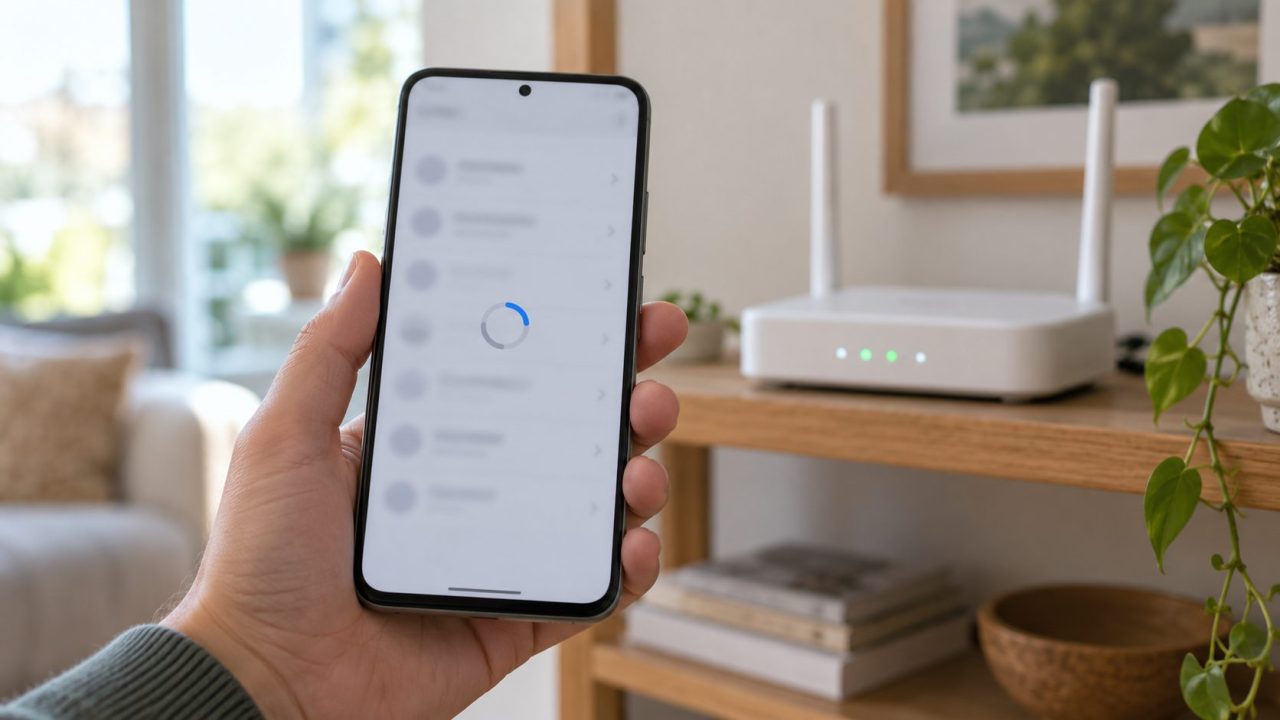
When an Android phone won’t connect to WiFi, the status under the network name shows where joining fails. Match it to the table, do the cheap checks first, and keep the reset for last.
This guide covers failing to join. If the phone connects but nothing loads, see WiFi connected but no internet. Menus below are for Samsung (One UI) and Pixel; names vary on other brands.
Android Phone Won’t Connect to WiFi? Read the Status First
When your Android phone won’t connect to WiFi, tap the network and watch the status: Scanning…, Connecting…, Authenticating…, Obtaining IP address…, Connected. Stuck on Authenticating… points to the password or security; stuck on Obtaining IP address… means the password worked.
| What you see | Usual cause |
|---|---|
| “Authentication problem”, “Check password and try again” | Password or certificate refused |
| Right password rejected, or “Disabled” | WPA3-only network or MAC filter |
| “Obtaining IP address…”, “IP configuration failure” | DHCP or DNS failed |
| “Access point temporarily full” | Router at its client limit: disconnect idle devices |
| “Saved” with no error after it | Auto-connect off, or another network preferred |
| Network not in the list | Hidden name or unsupported band |
| WiFi toggle grayed out | Work policy, or WiFi failed to start |
Next, run two checks from Google’s Pixel help: can other devices join this network, and can this phone join another?
No network works on this phone
Suspect the phone: a setting, an app or the WiFi hardware.
No device can join this network
Suspect the router: restart it, then call your ISP or the router maker.
Others join, and the phone works elsewhere
The classic case where an Android phone won’t connect to WiFi at home only: a stale password, a MAC filter, or missing WPA3 or band support.
First Fixes for Any Status: Restart, Then Rejoin
If your Android phone won’t connect to WiFi whatever the status, start here.
- Toggle WiFi and Airplane mode. Turn each off and on.
- Restart the phone, router and modem. Google says to unplug the router and modem for 15 seconds; skip the reset pinhole, which wipes its settings. If the router restarts by itself, see router keeps rebooting.
- Use automatic date and time. A wrong clock can cause WiFi problems, Google notes. Pixel: Settings > System > Date & time. Samsung: Settings > General management > Date and time > Automatic date and time.
- Install pending system updates over mobile data. Pixel: Settings > System > Software updates. Samsung: Settings > Software update.
- Try safe mode. Touch and hold Power off in the power menu (steps vary). If your Android phone won’t connect to WiFi normally but joins in safe mode, remove recent apps, starting with VPN and “security” apps.
Forget the network and join it again
After repeated password or IP failures, Android pauses the network for a few minutes, longer if failures continue, and shows the reason after “Saved”. “Check password and try again” waits for a new password. Rejoining clears both, and it’s often the whole fix when an Android phone won’t connect to WiFi after a password change.
Plain “Saved” means nothing is blocked: connect by hand and check the network’s Auto-connect switch (Samsung: Auto reconnect).
Forget it
Samsung: Settings > Connections > Wi-Fi, gear icon, Forget (or three-dot menu > Advanced settings > Manage networks). Pixel: Settings > Network & internet > Internet > Saved networks, pick it, Forget.
Rejoin without typos
On a connected Android phone, open the network’s settings and tap Share (Samsung: QR code), confirming with your PIN if asked. On the failing phone, scan it with the QR icon by Add network, or with the camera app.
Watch the status
Where it stops tells you which section to read.
“Authentication Problem” or “Check Password and Try Again”
Android’s source code defines “Authentication problem” as a wrong password or certificate, and Samsung’s “Authentication error occurred” usually means the saved password is wrong. Check it first, even if you’re sure.
An old saved password. If your Android phone won’t connect to WiFi that worked last week, suspect this first: after a new router or password change, the phone keeps offering the old one. Compare with a device that still connects, then forget and rejoin.
Case and look-alikes. Passwords are case-sensitive, and 0 and O, or l, I and 1, are easy to swap. Tap the eye icon to check, or use the QR share.
Work, school or eduroam networks. These can fail on a certificate. Follow your IT department’s setup steps, and never skip certificate validation.
Right Password, Still Rejected: WPA3-Only Networks and MAC Filtering
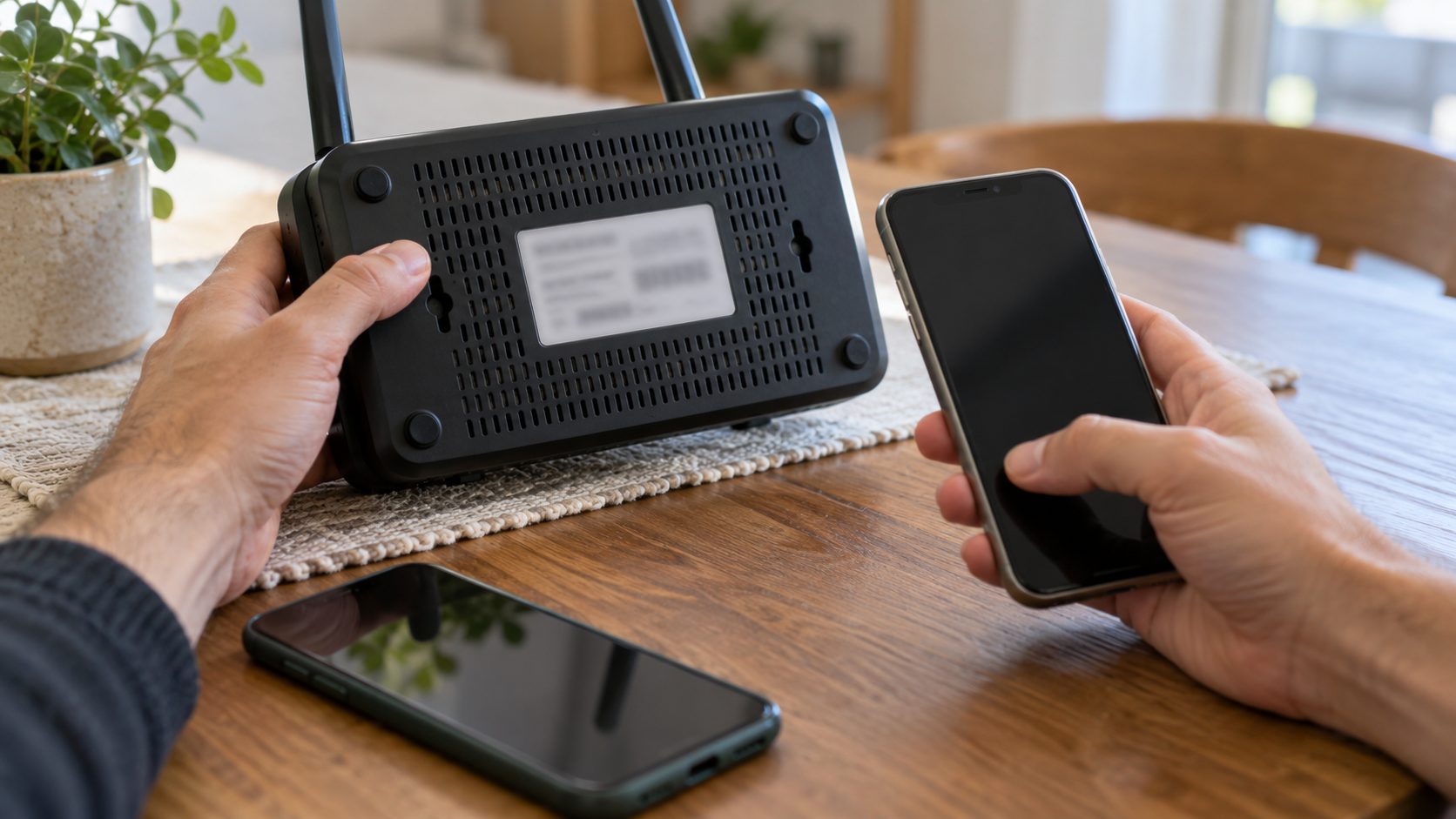
If the password works on other devices but your Android phone won’t connect to WiFi, the router may be turning the phone away.
WPA3-only security
Android 10 added WPA3-Personal, but only where the phone’s chip, driver and firmware support it. Phones on Android 9 or older, or without that hardware support, can’t join a WPA3-only network.
WPA3 is now required for new Wi-Fi CERTIFIED devices, and newer routers offer a WPA3-only mode. With it on, an older Android phone won’t connect to WiFi while newer devices join fine. Choose WPA2/WPA3 mixed mode, never an open network.
MAC filtering and the randomized MAC
Since Android 10, phones use a randomized MAC address per network by default. Per Android’s documentation, it’s built from the network’s name and security type: forgetting the network keeps it, but renaming the network or changing its security creates a new one.
A MAC filter that admits only listed devices (ASUS calls it Accept) refuses that address, even if the factory MAC is listed. That’s why an Android phone won’t connect to WiFi on a filtered router but joins everywhere else. The error varies: a password failure, “Disabled” or a Connecting… loop.
Add the address shown in that network’s settings to the router’s list (again after a rename), or switch that network to the phone’s real MAC. Pixel: gear icon > Privacy > Use device MAC. Samsung: gear icon > View more > MAC address type > Phone MAC.
Stuck on “Obtaining IP Address” or “IP Configuration Failure”
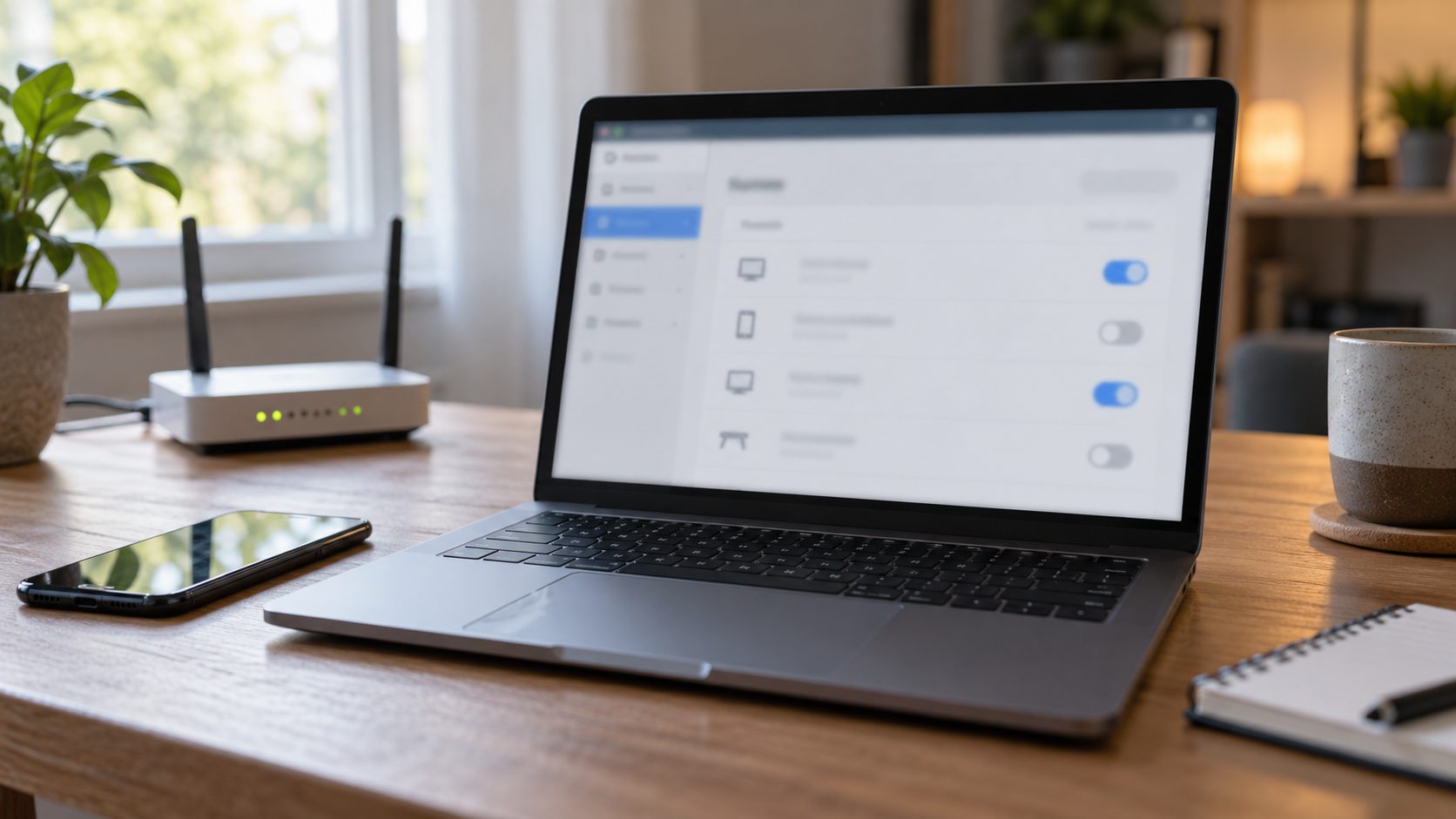
Here the password worked. Android describes IP configuration failure as a DHCP or DNS failure, so look at the router.
A full address pool. Addresses come from a fixed range, lent for a set time (24 hours by default on ASUS). A narrow range, long leases and many devices can leave none free, so a new Android phone won’t connect to WiFi while devices already online keep working. Widen the range or shorten the lease (ASUS: LAN > DHCP Server).
DHCP turned off. With no DHCP server, nobody gets an address. Turn it on, or check the main router if this box is only an access point.
Network Not Listed, or the WiFi Toggle Grayed Out
Hidden network. Tap Add network, enter the exact name, security type and password, then turn on Hidden network (Pixel: Advanced options; Samsung: View more).
An unsupported band. A phone sees only bands it supports. If the network is 5 GHz-only and the phone lacks 5 GHz, turn on 2.4 GHz in the router. A 6 GHz-only network needs a phone with Wi-Fi 6E (6 GHz) support.
Grayed-out toggle. On a work-managed phone, the organization can block changing networks and, from Android 13, adding networks or switching WiFi on or off; only your IT admin can lift that. On a personal phone, WiFi may have failed to start: restart, try safe mode and updates, then contact the maker if it stays gray after the reset below.
Last Resort: Reset Bluetooth and WiFi Settings
This wipes every saved WiFi network and Bluetooth pairing: watch, earbuds, car. Samsung warns its reset runs the moment you tap Reset settings, with no second confirmation. Apps, photos and files stay. Have your WiFi passwords ready.
On older Pixel or Android builds with an eSIM, leave “Erase downloaded SIMs” unticked: it deletes your eSIM, and only your carrier can reissue it.
Use it when your Android phone won’t connect to WiFi on any network, or nothing above helped. Menus vary by carrier, software version and model.
Pixel: Settings > System > Reset options > Reset Bluetooth & Wi-Fi > Reset settings. Older builds say Reset Wi-Fi, mobile & Bluetooth, which also resets mobile network settings.
Samsung: Settings > General management > Reset > Reset Wi-Fi and Bluetooth settings (older One UI: Reset network settings). Then add your network again.
Frequently Asked Questions
My Android phone won’t connect to WiFi but says “Saved.” Why?
Plain “Saved” means nothing is blocking the network. Connect by hand, check Auto-connect, and watch which status appears.
Why do other devices join when my Android phone won’t connect to WiFi at home?
Phone and router disagree: a stale password, a randomized MAC the filter doesn’t know, or missing WPA3 or band support.
Why does it say “Authentication problem” when the password is right?
Check the saved copy first. If the password works elsewhere but your Android phone won’t connect to WiFi, suspect a WPA3-only network or a MAC filter; on work networks, a certificate.
If Your Android Phone Won’t Connect to WiFi Anywhere
Read the status, fix the stage that failed, and save the reset for last. If the phone still fails on every network, contact the maker or an authorized service center.
If it joins but nothing loads, see WiFi connected but no internet. More fixes are in our mobile guides.

Leave a comment