

Why Is My Laptop Asking for a BitLocker Recovery Key? How to Find It
Why your PC suddenly wants a 48-digit key at startup, how to read the reason off the recovery screen, where your key is likely saved, and what to do if it's gone.

Your laptop is asking for a BitLocker recovery key because its drive is encrypted and something changed at startup: a firmware update, a Secure Boot or TPM change, or a USB stick left in. The PC can’t tell that from tampering, so it locks the drive. It’s usually harmless, and the 48-digit key is often in your Microsoft account at aka.ms/myrecoverykey.
Why Is My Laptop or PC Asking for a BitLocker Recovery Key?
A security chip called the TPM releases the drive’s key only when startup looks exactly like last time. Change the firmware, boot order, Secure Boot or the TPM, even on purpose, and the PC asks for the BitLocker recovery key. On Windows 11 24H2 or later, press Alt on the recovery screen to see a reason code:
| What changed | Alt code | Fix |
|---|---|---|
| BIOS/UEFI or TPM firmware update, new motherboard, or drive moved to another PC | E_FVE_PCR_MISMATCH (or a TPM or Secure Boot code) | Enter the key once |
| USB stick, SD card or disc left in at startup | E_FVE_PCR_MISMATCH | Remove it, restart |
| Secure Boot turned off | E_FVE_SECUREBOOT_DISABLED | Turn it back on, restart |
| Windows Update installed new Secure Boot certificates | E_FVE_SECUREBOOT_CHANGED | Enter the key once; if it repeats, fix the boot order |
| TPM off or not detected | E_FVE_TPM_DISABLED or E_FVE_TPM_NOT_DETECTED | Switch the TPM back on in firmware; never clear it |
| Too many wrong startup PINs (if you set one) | Varies | Enter the key, then in Control Panel open BitLocker Drive Encryption > Change PIN > Reset a forgotten PIN |
| Failed Windows sign-ins under a lockout policy (usually work PCs) | E_FVE_DEVICE_LOCKEDOUT | Enter the key |
| Boot order changed, dock added or removed | Varies | Put Windows Boot Manager first |
Asked once, after an update or repair? Just enter the key. Asked at every restart? Fix the cause.
Never turned BitLocker on? On Windows Home and many Pro laptops, Device Encryption turns on by itself once an administrator signs in with a Microsoft, work or school account, and saves the key there. Full BitLocker Drive Encryption is only in Pro, Enterprise and Education; the recovery screen is the same.
Before You Type Anything, Read the Recovery Screen
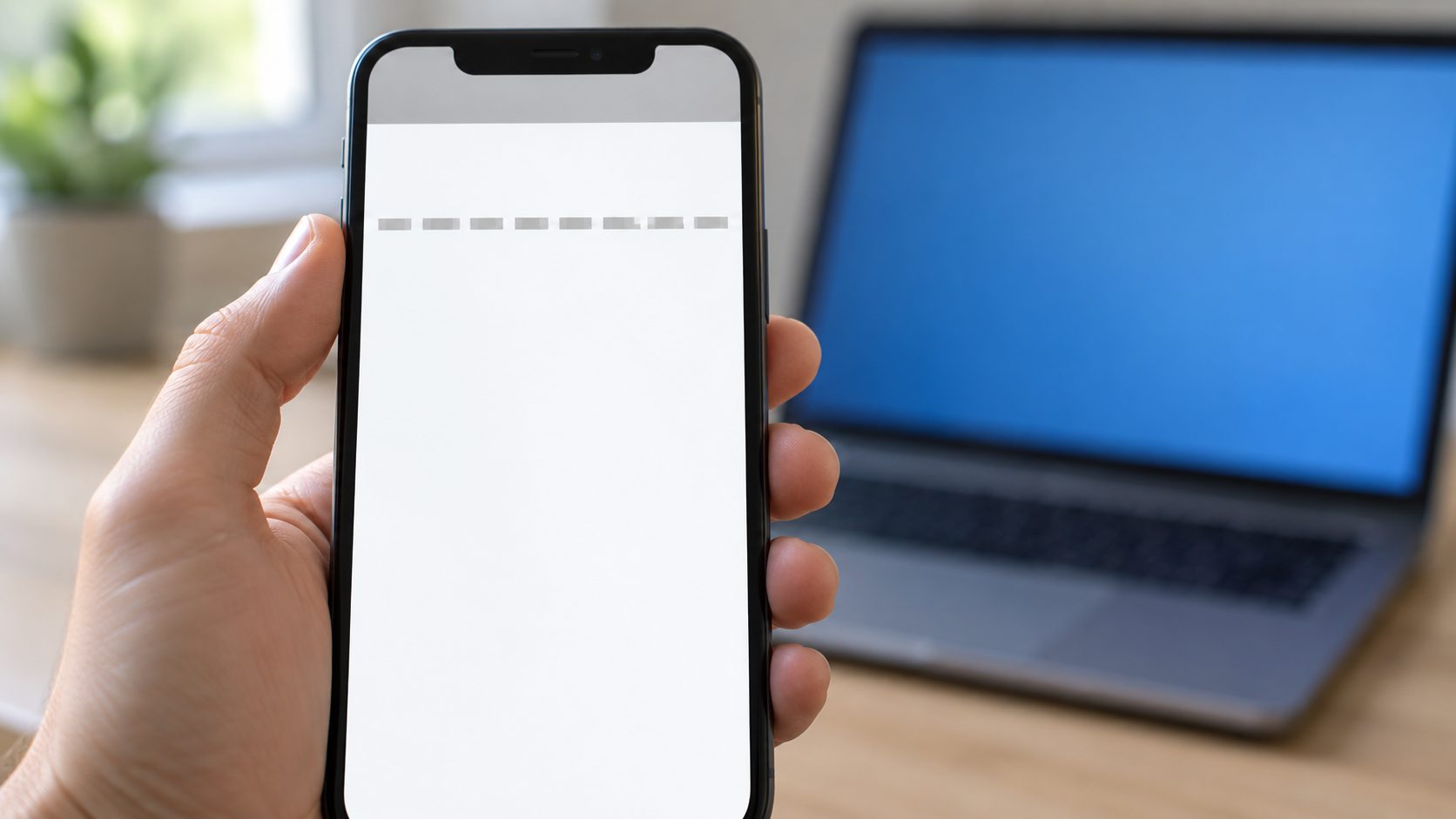
Don’t reset the PC or change BIOS settings yet. Photograph the screen with your phone; it holds three clues:
- The key ID. Match its first 8 characters against any key you find.
- The hint. It names where the key was saved and, on 24H2 or later, which Microsoft account holds it. If it shows only the generic aka.ms/recoverykeyfaq link, Windows may not know where your BitLocker recovery key went, so check every place below.
- The reason code. Press Alt on 24H2 or later.
Next, try the fixes that need no key: unplug USB sticks, SD cards and the dock, hold the power button until the laptop turns off, and start it again. If the prompt returns, you need the key, unless the Alt code is one of these:
E_FVE_SECUREBOOT_DISABLED: open firmware setup via Skip this drive > Troubleshoot > Advanced options > UEFI Firmware Settings (or the maker’s setup key at power-on) and set Secure Boot to Enabled. Don’t pick Reset, Restore factory keys or Clear keys unless the maker says to; that can bring the prompt back or stop Windows from booting.
E_FVE_TPM_DISABLED or E_FVE_TPM_NOT_DETECTED: in the same menu, switch the TPM (fTPM or PTT) back on and change nothing else. Clearing it wipes Windows Hello PINs and passkeys and leaves only the recovery key to open the drive. If the firmware offers to reset the fTPM (some AMD boards do after a CPU swap), find the key first.
Where to Find Your BitLocker Recovery Key
Your BitLocker recovery key is almost always in one of these four places. Check them on your phone or another PC:
Your Microsoft account
Go to aka.ms/myrecoverykey, sign in with the account used on this PC and pick the key whose ID matches. Don’t go by the device name; it’s often generic (DESKTOP-7QK2F9L).
Work or school account
Go to aka.ms/aadrecoverykey, sign in, choose Devices, pick the PC and select View BitLocker Keys. If it isn’t there, ask IT and read them the key ID. Some work PCs change the key after each use, so get a fresh one next time.
A printout
Manual BitLocker setup offers to print the key, so look wherever you keep the laptop’s receipt and warranty card.
USB drive or text file
If you saved the key to a USB flash drive, plug it into the locked laptop and follow the prompts. If it holds only a text file, read that on another device. Also search OneDrive, other PCs and email for “BitLocker Recovery Key”, the saved file’s default name.
Keyboard Not Working on the BitLocker Recovery Screen
The prompt runs before Windows loads its drivers, so your keyboard may not work just when you need to type the BitLocker recovery key. Try, in order:
- Function keys. Microsoft’s BitLocker FAQ says F1 to F10 work before startup on every keyboard, unlike number keys: F1 to F9 for 1 to 9, F10 for 0 (hold Fn if needed). This also sidesteps Num Lock and non-US layouts.
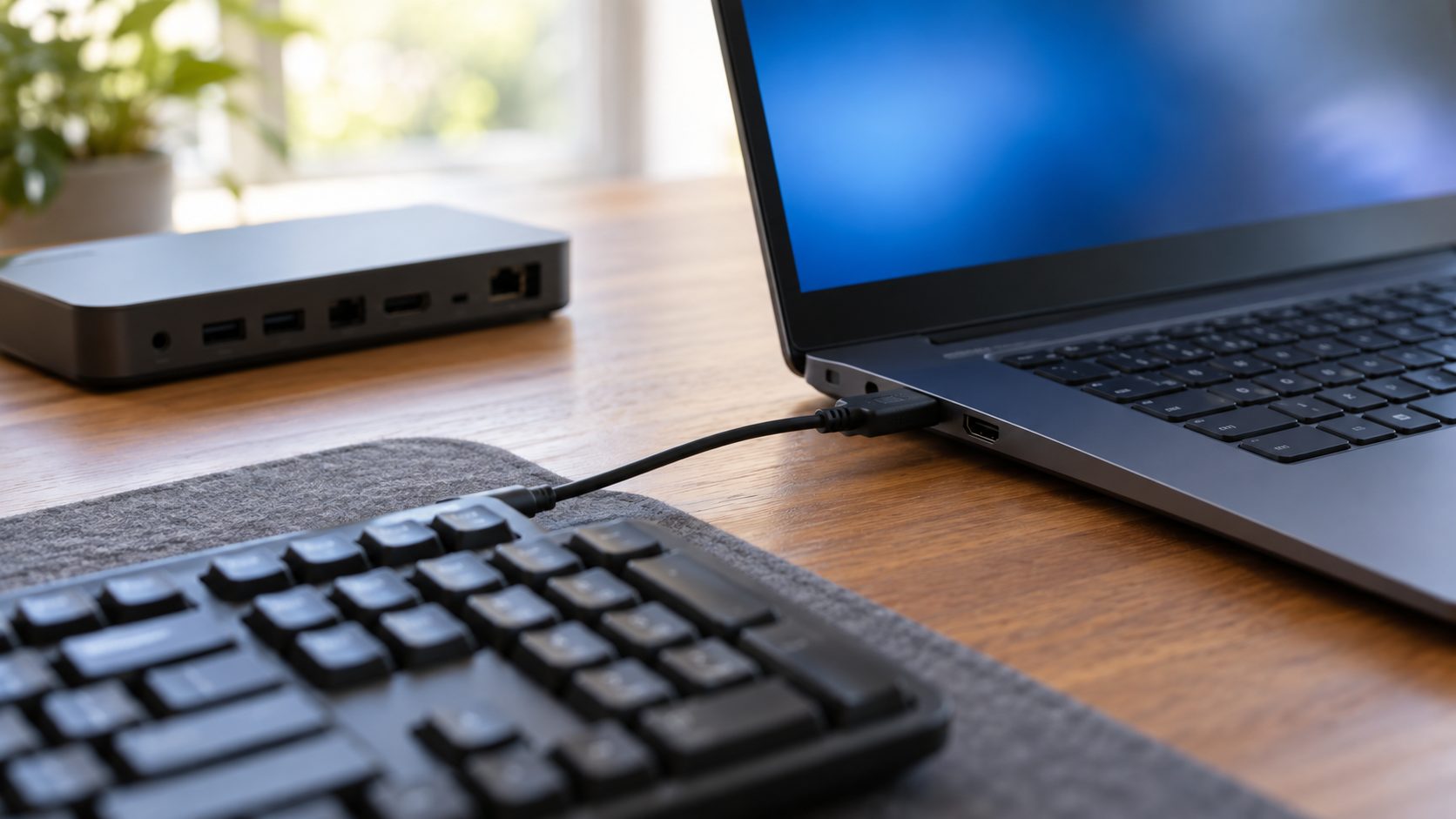
- A wired USB keyboard. Bluetooth and dock keyboards often don’t work this early; plug a wired one into the laptop itself.
- On-screen keyboard. On a touchscreen, tap inside the key box. The graphical screen with a Skip this drive link can show a touch keyboard; the plain text screen usually can’t.
BitLocker Recovery Key Not Found? Check Who Set Up the PC
Your BitLocker recovery key goes to whichever account turned encryption on. Try every Microsoft account you’ve used, including old Hotmail addresses and the one behind your Xbox or Minecraft profile; a relative, store or school may have used theirs. If you bought the laptop used, ask the seller to find the key by its ID, or return it.
If the sign-in code goes to an inbox you only check on the locked laptop, choose a text or the Authenticator app, or select I don’t have any of these to fill in Microsoft’s account recovery form. Never pay or give your password to anyone who offers to unlock the drive.
No Key Anywhere? What a Reset Really Costs
Microsoft’s BitLocker recovery key guide says its support team can’t retrieve or recreate a lost key. Data recovery shops and “unlock” apps can’t decrypt the drive either; so-called bypasses end in a reset that wipes it.
If you can’t find the BitLocker recovery key or undo the change, Microsoft’s only answer is a reset, which removes all your files. Files already synced to OneDrive or another cloud service come back when you sign in. On a work PC, ask IT first. Otherwise:
- On the recovery screen, choose Skip this drive (or press Esc), then Troubleshoot > Reset this PC > Remove everything.
- If that asks for the key too, or says the drive is locked, make a Windows install USB on another PC with Microsoft’s Media Creation Tool, boot from it, and delete the internal drive’s partitions when Setup asks where to install. This erases the drive; Windows usually reactivates itself once online.
How to Stop BitLocker Recovery From Coming Back
If your PC asks for the BitLocker recovery key at every restart, something is still changing. Enter the key once more, then fix it from Windows in this order:
- Right-click Start, choose Terminal (Admin) (on Windows 10, Windows PowerShell (Admin)) and run:
manage-bde -protectors -disable C: -RebootCount 2
This pauses the check for two restarts; the drive stays encrypted. Use the same command before a BIOS or TPM update from the maker’s site, or before firmware changes while fixing an SSD not showing up. Windows Update doesn’t need it, though its Secure Boot certificate update can still cause one prompt. - Go to Settings > System > Recovery (Windows 10: Update & Security > Recovery), select Restart now next to Advanced startup, then Troubleshoot > Advanced options > UEFI Firmware Settings.
- Enable Secure Boot, put Windows Boot Manager first in the boot order and move any network boot entry (PXE, or UEFI IPv4/IPv6) below it. With a dock, check the order while it’s plugged in too. Save and exit.
- Restart once more. Protection resumes by itself and records the corrected startup.
Microsoft’s Secure Boot troubleshooting guide says a PXE-first order can cause recovery on every boot since the 2023 certificate update. If it still repeats, update the BIOS/UEFI, running step 1 first.
Check your BitLocker recovery key backup today
In an admin Terminal (this works on Home too), run:manage-bde -protectors -get C:
Check that the Numerical Password ID appears at aka.ms/myrecoverykey. If not, keep the 48-digit Password in a password manager or on paper, away from the laptop.
BitLocker Recovery Key FAQ
Does the BitLocker recovery key screen mean I’ve been hacked?
Almost certainly not. Nearly every trigger is an update, a setting or something plugged in. Be suspicious only if nothing changed and the laptop was recently out of your hands.
Is the BitLocker recovery key my password or PIN?
No. It’s a separate 48-digit number, so your Windows PIN and password won’t work on that screen.
Should I turn off encryption so this never happens again?
Encryption protects your files if the laptop is stolen, so a checked key backup is the better fix. To turn it off anyway, use Settings > Privacy & security > Device encryption on Windows 11 Home, or Control Panel > BitLocker Drive Encryption > Turn off BitLocker on Pro.
Recap: Find the Reason, Then the Key
Read the screen, undo simple causes, then get the BitLocker recovery key from the account that set up the PC. Back in Windows, fix the cause and check your backup.
For more fixes, browse our computer guides or all our how-to guides.



Leave a comment