

Windows 11 Won’t Install? Fix TPM, Secure Boot, USB and Disk Errors
Where Setup stops tells you why: a TPM or boot-mode setting, an old or wrongly booted USB stick, an MBR disk, or a driver or app behind a rollback code.

When Windows 11 won’t install, the message on screen rarely names the real cause. Setup can stop at five points: the requirements check, a USB stick that won’t boot, the disk screen, a rollback with an error code, or the network step on a new PC. Find yours and skip the rest.
The fixes apply whether Windows 11 won’t install as an upgrade from Windows 10 or as a clean install from USB. Tricks that force it onto unsupported hardware are left out on purpose; the FAQ explains why.
A clean install from boot media wipes the drive, and partition conversions can’t be undone, so copy your files elsewhere first. With BitLocker or Device encryption on, save the recovery key: firmware changes can trigger a recovery prompt.
Windows 11 Won’t Install? Find the Stage Where It Stops
The last screen you saw before Setup gave up tells you which section to read:
“This PC Can’t Run Windows 11”: Read the PC Health Check Result
On Windows 10, search the Start menu for PC Health Check and click Check now. It names the requirement that fails. Microsoft’s main requirements:
- Processor: a compatible 64-bit chip, 2 or more cores, 1 GHz or faster: roughly Intel 8th Gen Core or AMD Ryzen 2000 desktop CPUs (not the 2000G/2000U APUs) and newer. Trust Health Check on your exact model.
- Memory and storage: 4 GB RAM, 64 GB storage.
- Firmware and security: UEFI, Secure Boot capable, plus TPM version 2.0.
When an item fails, Windows 11 won’t install as an upgrade. To check the firmware items yourself, press Windows + R and run tpm.msc (Specification Version must read 2.0), then msinfo32: a BIOS Mode of Legacy under System Summary means CSM boot, which fails the UEFI check.
If Windows 11 won’t install on a new PC with no operating system yet, go straight to the firmware checks below. Upgrades also need Windows 10 version 2004 or later (in practice, an updated 22H2).
If an unsupported CPU is why Windows 11 won’t install, no firmware setting fixes it. Microsoft doesn’t recommend forcing it; the FAQ covers staying on Windows 10.
Windows 11 Won’t Install Because of TPM 2.0: Turn On fTPM or PTT
If tpm.msc says “Compatible TPM cannot be found”, the TPM is often present but switched off in firmware, and Windows 11 won’t install until you turn it on:
- Hold Shift, click Restart and choose Troubleshoot > Advanced options > UEFI Firmware Settings > Restart. No such tile (a sign of Legacy mode)? Tap the setup key at power-on instead, often Del, F2, F1 or F10.
- Open the Advanced, Security or Trusted Computing menu.
- Enable the TPM option, named Security Device, Security Device Support, TPM State, AMD fTPM switch, AMD PSP fTPM, Intel PTT or Intel Platform Trust Technology depending on the maker.
- Save, exit and run
tpm.mscagain.
Microsoft’s guide to enabling TPM 2.0 links maker-specific steps. Seeing version 1.2? Look for an Intel PTT or AMD fTPM option to use instead of a separate TPM 1.2 chip, or a TPM 2.0 firmware update from your PC maker. Without either, the PC doesn’t qualify.
Secure Boot Only Has to Be Supported: Leave Legacy (CSM) Mode Safely
Microsoft asks for firmware that’s “UEFI, Secure Boot capable”; switching Secure Boot on is recommended but optional. So when Windows 11 won’t install because of Secure Boot, the usual blocker is Legacy BIOS (CSM) boot mode.
Windows boots only in the mode it was installed in, and Legacy mode needs an MBR disk. Switch an MBR install to UEFI and Windows 10 won’t start, so run MBR2GPT first (see below). Before a clean install, you can switch straight away.
Then find CSM, Launch CSM or Boot Mode, usually on the Boot tab (names vary by maker), and set it to Disabled or UEFI. With an older desktop graphics card, this can blank the screen: use the motherboard’s video output if the CPU has graphics, or clear CMOS to undo it.
Windows 11 Won’t Boot From USB: Pick the UEFI Entry or Rebuild the Stick
Upgrading needs no stick: if Windows 11 won’t install through Windows Update, the Installation Assistant runs inside Windows 10. For a clean install, try the quick boot-menu fixes first.
Pick the UEFI entry in the boot menu
Boot-menu keys vary: Esc, F11 and F12 are common (ASUS uses Esc on laptops, F8 on desktops). If the stick appears twice, as “UEFI: USB Drive” and a legacy entry, choose UEFI, because your pick sets the mode Setup runs in.
Stick missing from the menu? Turn off Fast Boot in firmware, as ASUS advises, and try another USB port. Disable Secure Boot only as a last resort (Microsoft-signed Windows 11 media normally boots with it on), and turn it back on afterwards.
Rebuild it with the Media Creation Tool
If Windows 11 won’t install from USB because the PC still ignores the stick, make a fresh one on any working Windows PC with the Media Creation Tool from Microsoft’s download page. It erases a stick of 8 GB or more and builds x64 media; Arm64 PCs use a separate ISO.
Old sticks carry old builds (the current release is 26H2, from September 29, 2026). On PCs with Microsoft’s BlackLotus (CVE-2023-24932) boot-manager revocation applied, older media won’t boot; if even a fresh stick is refused, Microsoft’s KB5025885 covers updating media. Don’t hand-copy an ISO’s files either: FAT32 can’t hold files over 4 GB.
“Windows Cannot Be Installed to This Disk”: GPT vs MBR Fixes
If Windows 11 won’t install on a partition because the selected disk “is not of the GPT partition style” or “has an MBR partition table”, Setup started in UEFI mode on an MBR disk. Windows 11 needs UEFI, so convert the disk rather than booting the stick’s legacy entry. If the disk “is of the GPT partition style” (no “not”), Setup started in Legacy mode: boot the stick’s UEFI entry instead.
Keep files: MBR2GPT
Converts the system disk in place: at most three primary partitions, no extended ones.
Wipe in Setup
Delete every partition on the target drive, select the unallocated space and click Next; Setup creates GPT. Check sizes to pick the right drive.
Wipe with diskpart
From Shift + F10, run diskpart, list disk, select disk N, clean and convert gpt. Clean erases the whole disk.
MBR2GPT can’t be undone, so back up first. Suspend BitLocker in Control Panel, open Command Prompt as administrator in Windows 10 and validate:mbr2gpt /validate /allowFullOS
If it passes, convert:mbr2gpt /convert /allowFullOS
Then switch the firmware to UEFI.
Once Windows boots in UEFI mode, turn BitLocker off and on again rather than just resuming it (Microsoft says to recreate the protectors). If validation fails, setupact.log in C:\Windows names the failed check, such as a fourth primary partition; if you can’t fix it, use a wipe route. Microsoft’s MBR2GPT reference lists every prerequisite.
“We couldn’t create a new partition”
When Windows 11 won’t install with this message, power off, disconnect other internal drives and any USB storage except the installer, and make the target disk the first boot drive. Still failing? Delete the target disk’s partitions (or use diskpart’s clean) and install to the unallocated space; both erase that disk.
No drives listed at all
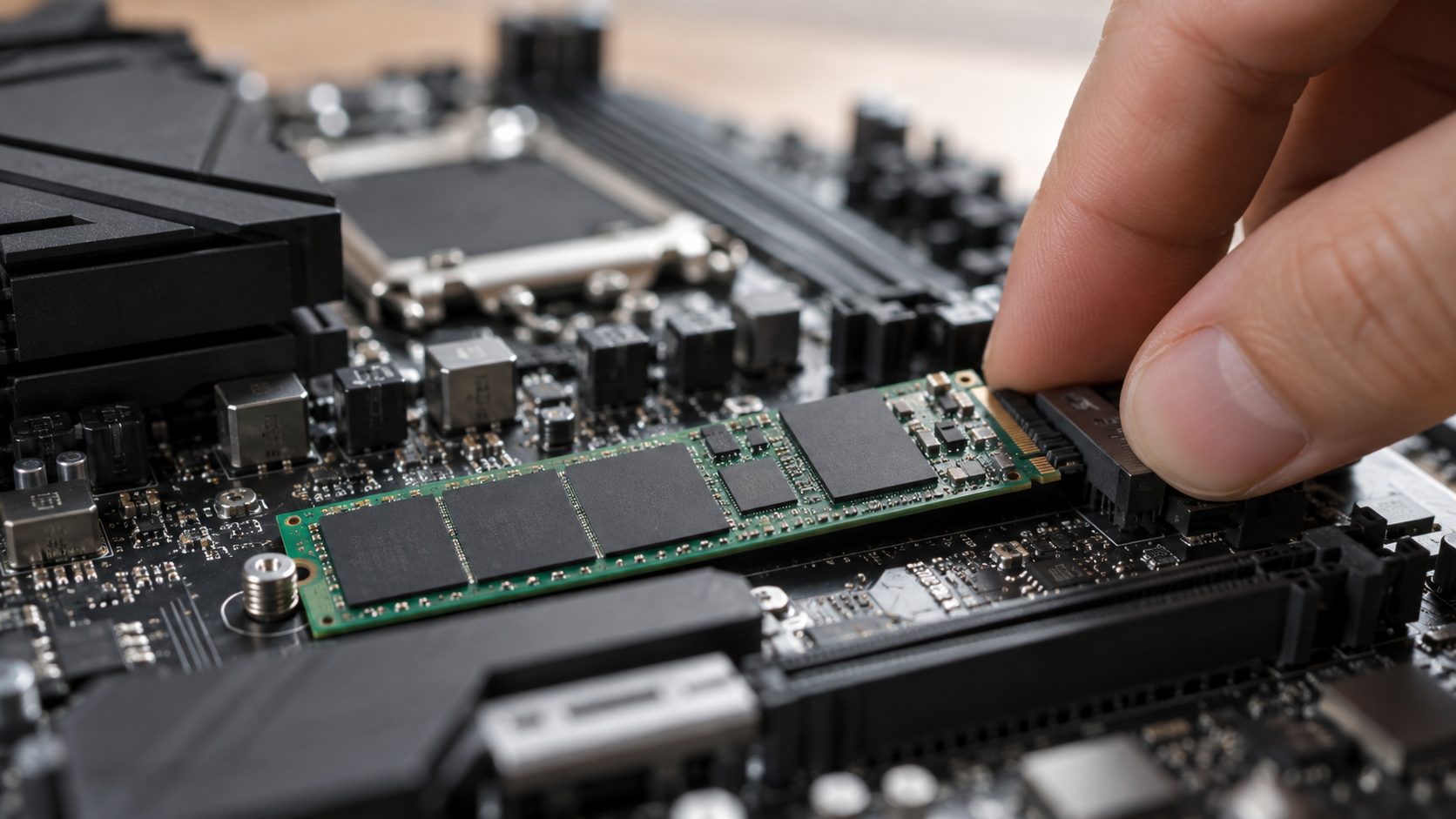
If the disk screen is empty, Windows 11 won’t install because Setup can’t see the storage controller. On many Intel PCs from 11th Gen onward, some Core Ultra models included, Intel VMD hides the drive: extract the PC maker’s Intel RST driver onto the installer stick, click Load driver and pick Intel RST VMD Controller. ASUS says Lunar Lake and newer need no driver with 24H2 or later media. Our SSD not showing up guide, in our computer guides, covers VMD further.
Windows 11 Won’t Install and Rolls Back? Decode the Error Code
Note the code on the error screen or under View update history in Windows Update; it tells you why Windows 11 won’t install. Here’s what Microsoft says each one means:
| Code | What it means | First fix |
|---|---|---|
| 0xC1900101 | A driver problem | Update drivers, free 20 GB |
| 0xC1900200 – 0x20008 or 0xC1900202 – 0x20008 | Requirements not met | Run PC Health Check |
| 0x80070070 | Not enough free space | Clear space |
| 0x800F0922 | Update servers unreachable, or System Reserved too small | Disconnect any VPN; if it recurs, run SetupDiag |
| 0xC1900208 – 0x4000C | An incompatible app | Uninstall it |
| 0x80073712 | Damaged update files | Run DISM (below) |
| 0x80070002 0x20009 | The system can’t find a file | Disconnect drives you aren’t installing to |
Before retrying, unplug nonessential hardware, install pending updates and drivers, and remove non-Microsoft antivirus. Then repair system files from an admin terminal:DISM /Online /Cleanup-Image /RestoreHealth
then sfc /scannow, as in our guide to a problem resetting your PC. If Windows 11 won’t install after that, Microsoft’s SetupDiag tool reads Setup’s logs and names the cause.
Frequently Asked Questions
Does Secure Boot have to be turned on for Windows 11?
No. Capable is enough if the PC boots in UEFI mode, though Microsoft recommends turning it on. Expiring 2011 Secure Boot certificates aren’t why Windows 11 won’t install either: PCs without the 2023 ones keep starting normally.
Windows 11 won’t install on a new PC I built. What did I miss?
Check the firmware defaults: fTPM or PTT may be off, CSM on, and Intel VMD hiding the drive. Windows 11 Home and Pro for personal use also need internet and a Microsoft account to finish setup; if no network adapter shows up, it usually needs a driver (see what to do when Windows 11 won’t connect to WiFi).
Is it safe to install Windows 11 on an unsupported PC?
Microsoft doesn’t recommend it. Such a PC may malfunction, isn’t guaranteed updates (security ones included), gets no Microsoft support, and compatibility damage isn’t covered by warranty. Go back works for only 10 days after the upgrade.
Windows 10 22H2 with consumer Extended Security Updates (ESU) is safer: enrollment is free with Windows Backup settings sync or 1,000 Microsoft Rewards points, or costs $30 (US price), and coverage runs until October 12, 2027.
Recap: Match the Fix to Where Setup Stopped
A failed check needs TPM 2.0 and UEFI; a stick that won’t start needs its UEFI entry or a rebuild; a disk error needs GPT; a rollback needs the fix its code points to. If Windows 11 won’t install only because of the processor, stay on Windows 10 with ESU.
More fixes are in our computer guides.



Leave a comment