

How to Fix Phone Brightness That Dims by Itself or Is Too Low
Screen dimming on its own or dark at full brightness? Rule out heat, battery savers and the screen timeout, reset auto-brightness, then look for a dimming filter.
A screen that dims by itself, stays dark at full brightness or won’t go low enough at night is rarely a hardware fault. Learning how to fix phone brightness mostly means finding the feature that’s changing the level: heat protection, a battery saver, the screen timeout, adaptive brightness or an accessibility filter.
This guide covers how to fix phone brightness on iPhone, Pixel and Samsung Galaxy, cheapest checks first. Menus vary by software version and brand.
How to Fix Phone Brightness: Heat, Battery or a Setting?
The two-minute version of how to fix phone brightness that keeps changing: feel the phone, check for a battery saver, then toggle auto-brightness off and on. Still dim at full brightness? Suspect heat or a dimming filter.
Phone Warm? Heat Dimming Is Protection, Not a Fault
Apple’s brightness support page says a too-warm iPhone might dim the display and cap maximum brightness until it cools. Samsung says Galaxy brightness can also change to protect an overheating phone. The tell-tale sign: slider at maximum, screen dim, phone warm.
Here’s how to fix phone brightness that drops from heat: close games or navigation, unplug the charger and get the phone out of direct sun. Apple designs iPhones for ambient temperatures of 32 to 95 degrees F (0 to 35 degrees C). If an iPhone shows a temperature warning, Apple says to turn it off and move it somewhere cooler.
Apple counts a dimmed or black display among the ways an iPhone protects itself from heat. Don’t try to get around it; cool the phone.
Auto-Brightness and Adaptive Brightness: The Usual Suspect
Auto-brightness uses an ambient light sensor to dim the screen in dark places and brighten it in bright ones. It’s the first thing to check if you’re figuring out how to fix phone brightness that changes by itself. If it misjudges the light, Apple suggests turning it off and back on.
- iPhone: Settings > Accessibility > Display & Text Size > Auto-Brightness, not under Display & Brightness.
- Pixel: Settings > Display & touch > Adaptive brightness.
- Samsung Galaxy: Settings > Display > Adaptive brightness, or touch and hold the Quick panel brightness slider.
Clean the sensors at the top of the screen
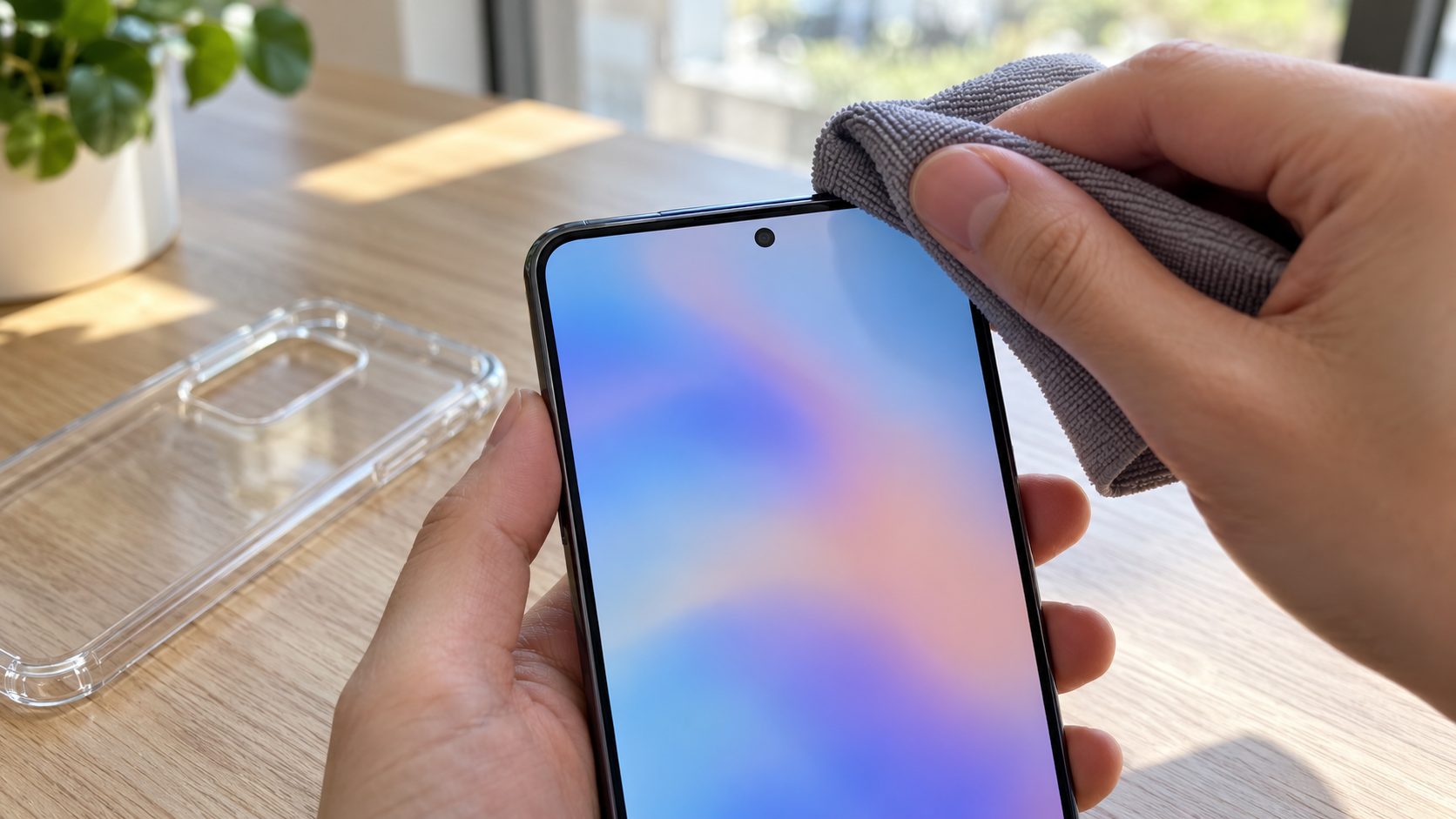
Samsung lists a proximity sensor blocked by a case or screen cover as a cause of dimming. The proximity and light sensors usually sit along the top edge, though some phones hide them under the display. Remove the case and wipe that strip with a dry microfiber cloth, as Samsung’s dimming guide suggests.
Battery Savers and Screen Timeout: Why It Dims Early
A yellow battery icon on iPhone means Low Power Mode, which Apple says reduces display brightness and sets Auto-Lock to 30 seconds. It can switch on below 20% if Adaptive Power is supported and on, and turns off once you charge to 80%. Turn it off in Settings > Battery (Power Mode on iPhone 15 and later).
Samsung says some Galaxy power saving modes dim the screen: check Settings > Battery > Power saving (Battery and device care > Battery on One UI 6 and earlier). A Pixel’s Battery Saver turns on Dark theme, so a scheduled saver can suddenly darken the look.
How to fix phone brightness that dims after a few seconds
Phones dim the display just before the screen timeout turns it off, so a short timer looks like brightness dropping on its own. Lengthen the timer, or turn on the stay-lit option:
| Phone | Screen timeout | Stays lit while you look |
|---|---|---|
| iPhone | Settings > Display & Brightness > Auto-Lock (30 seconds in Low Power Mode) | Attention Aware Features (Face ID models) |
| Pixel | Settings > Display & touch > Screen timeout | Screen attention (Pixel 4 and later) |
| Samsung Galaxy | Settings > Display > Screen timeout (up to 10 minutes) | Keep screen on while viewing |
On Face ID iPhones, leave Attention Aware Features on (Settings > Accessibility > Face ID & Attention, or Face ID & Passcode on some versions). Apple says “Your display won’t dim until you stop paying attention to your device.”
Dark at Full Brightness? Check These Dimming Filters
Slider at 100% and still dark? Look for these filters before blaming the display. Switching one off is how to fix phone brightness that stays low at maximum.
Reduce White Point (iPhone)
Settings > Accessibility > Display & Text Size. It lowers the intensity of bright colors, so full brightness looks dim.
Extra dim (Pixel)
Google’s Extra dim help says it dims below the normal minimum. Pixel 9 and earlier: Settings > Accessibility. Pixel 10 and later: in the Quick Settings brightness slider.
Extra dim (Galaxy)
Settings > Accessibility > Vision enhancements, or its Quick panel button. Depending on its restart setting, it can stay on after a reboot.
Focus and Bedtime
An iPhone Focus can dim the Lock Screen (see its Options), and Pixel’s Bedtime mode can dim the wallpaper. On a Galaxy, check Sleep mode in Modes and Routines.
A stray triple-click of the iPhone side or Home button runs the Accessibility Shortcut, which can switch on Reduce White Point if it’s assigned there, or Zoom (see our guide to a phone stuck zoomed in).
How to fix phone brightness when you can’t read the screen
- Max out the slider. In Control Center or Quick Settings, drag brightness to the top. On Pixel 10 and later, Extra dim is part of that slider; on a Galaxy, tap the Extra dim button if it’s there.
- Ask your voice assistant to turn the brightness up, if one is set up.
- Triple-click on iPhone if Reduce White Point is on your Accessibility Shortcut.
- Force-restart a Galaxy last. Hold Volume down and the Side key for at least 7 seconds (Samsung says personal data isn’t affected), then turn Extra dim off in Settings > Accessibility > Vision enhancements.
How to Fix Phone Brightness That Won’t Go Lower or Higher
Brightness won’t go down far enough
Apple’s specs put the iPhone 16 and 17 minimum at 1 nit. Here’s how to fix phone brightness that won’t go lower: turn on Reduce White Point or Extra dim on purpose. Night Shift, Night Light and Eye comfort shield change the color, not the level; see our yellow phone screen guide.
iPhone won’t brighten all the way
Everyday content tops out near the typical figure; the higher peaks apply only to HDR content or very bright surroundings. iPhone 17 figures:
The iPhone 16 differs only in its 2,000-nit outdoor peak. A warm phone’s ceiling is lower still.
Pixel and Galaxy: the sunlight boost
On Pixel 4 and later, adaptive brightness can briefly exceed the normal maximum in direct sun, so keep it on outdoors. Samsung offers Extra brightness (Settings > Display) only on S22, S23, S24 series and Flip5 phones with select carriers and software; it appears only with Adaptive brightness off and drains the battery faster.
When It’s the Hardware: Sensors and Replacement Screens
If no setting helps, suspect the hardware, especially after a screen repair. Apple warns that a nongenuine iPhone display can degrade the ambient light sensor, making the screen dim or brighten incorrectly, and may be dimmer or uneven.
If a restart and updates don’t help, book a repair with the manufacturer or an authorized shop. Flicker or lines are a different fault; see our phone flashing guide.
Frequently Asked Questions
Why does my phone keep dimming with auto-brightness off?
Usually it’s the screen timeout: phones dim just before Auto-Lock or Screen timeout turns the display off. Heat, a battery saver or a bedtime option can also lower it.
Why won’t my phone brightness stay down?
Adaptive brightness keeps adjusting it. On a Pixel, Google says “Over time, your phone will learn your preferences” as you move the slider. For a level that never moves, turn adaptive brightness off; that’s how to fix phone brightness that won’t stay down.
How to fix phone brightness going down while charging?
Charging can warm the phone, and a warm phone caps its own brightness to protect itself. Unplug it, keep it out of the sun and let it cool.
Recap: How to Fix Phone Brightness in Order
Cool the phone, check battery savers and the screen timeout, toggle auto-brightness and set the slider by hand; that’s how to fix phone brightness on most phones. Still dark at 100%? Check for Reduce White Point, Extra dim or a bedtime option before suspecting the screen.
More fixes are in our mobile guides.
Leave a comment