

How to Remove a Virus From Your Phone and Stop Fake Virus Alerts
Most phone "virus" alerts are website notifications, not malware. Tell them apart, then clean up Android or iPhone in order, saving the factory reset for last.
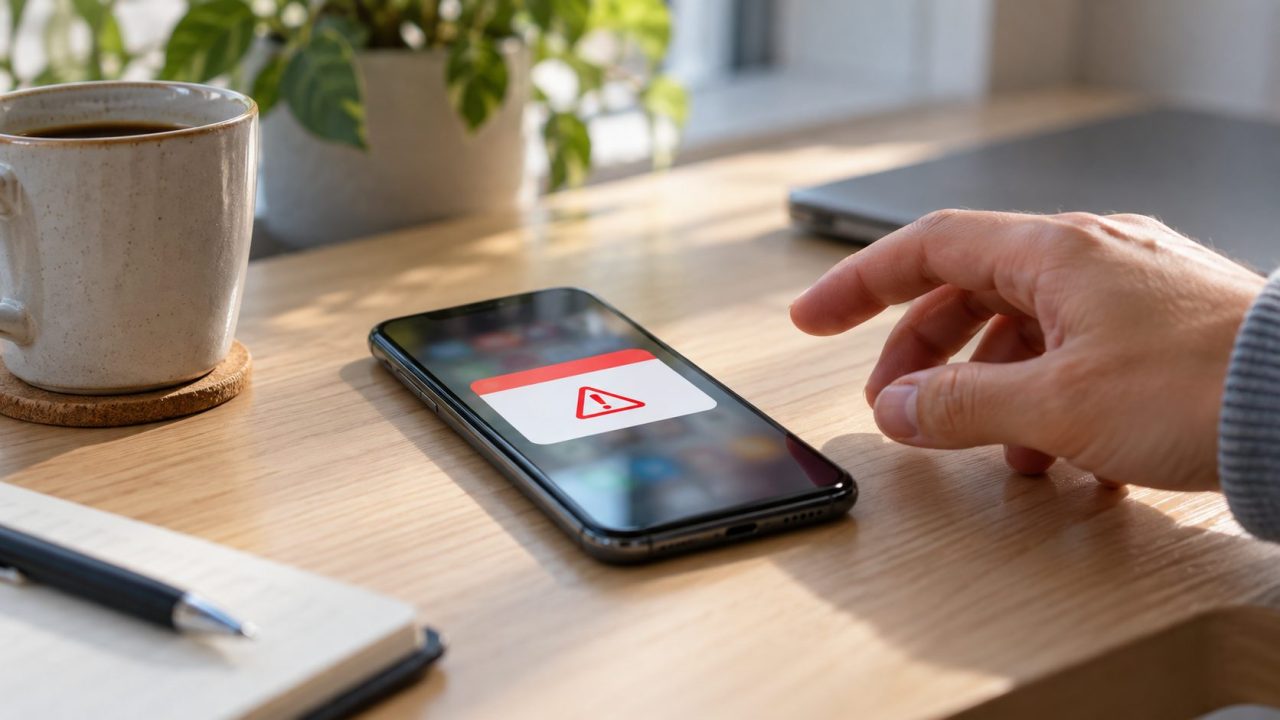
Search how to remove virus from phone and most results jump straight to an antivirus app or a factory reset. Check one thing first: many “your phone is infected” warnings are website notifications, not malware.
Short answer: how to remove virus from phone depends on the source. Website alerts stop when you turn off that site’s notifications; ads or unknown apps need the culprit uninstalled in safe mode; on an iPhone, remove unknown profiles and spam calendars.
Malware or Just Pop-Ups? Match the Symptom First
Google’s Chrome help lists virus alerts as a sign of unwanted ads or software, so many “how to remove virus from phone” searches start in the browser. Match what you see:
| What you see | Usually means |
|---|---|
| Virus warning in the notification shade from a website | Site notifications |
| Full-screen ads over the home screen or other apps | An adware app |
| Unknown apps plus battery drain, data spikes, heat or crashes | Possible real malware |
| Browser homepage or search engine changed | An app changing settings |
| “Virus” events in an iPhone’s Calendar | A spam calendar |
Fake Virus Alerts in Chrome: Turn Off Site Notifications
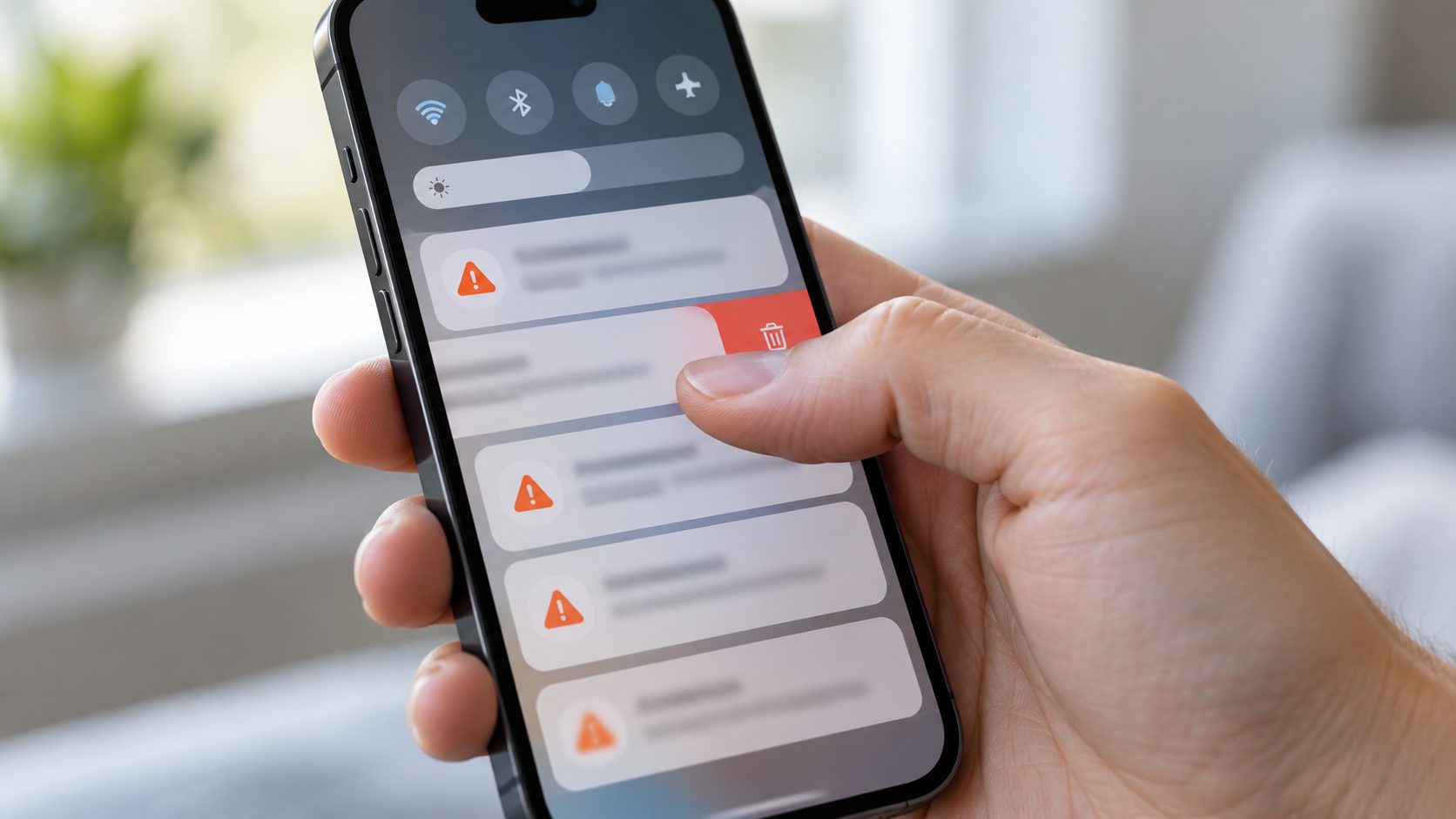
When Chrome keeps saying your phone has a virus, a site usually holds notification permission, which neither the pop-up blocker nor clearing the cache removes.
For many people, how to remove virus from phone really means silencing a website. Google’s Chrome notification help covers four places:
The alert itself
On some phones you can swipe down and tap Unsubscribe; if it’s missing, use step 2 or 3.
One site
On the site, tap Page info left of the address bar, then Permissions, and turn notifications off.
All sites
More > Settings > Site settings > Notifications: switch off, or use quieter messaging.
Safety Check
Chrome may remove the permission from disruptive sites and ones you haven’t visited in a while; see Settings > Safety Check.
A website can’t scan your phone, so its “virus detected” alert is an ad. Don’t tap Clean or install the app it pushes, and never call a number in a pop-up, as the FTC warns.
Turn on Block pop-ups under Menu > Settings > Privacy dashboard, and silence one site under Settings > Notifications > App notifications > Samsung Internet.
How to Remove Virus From Phone Without a Factory Reset: Safe Mode
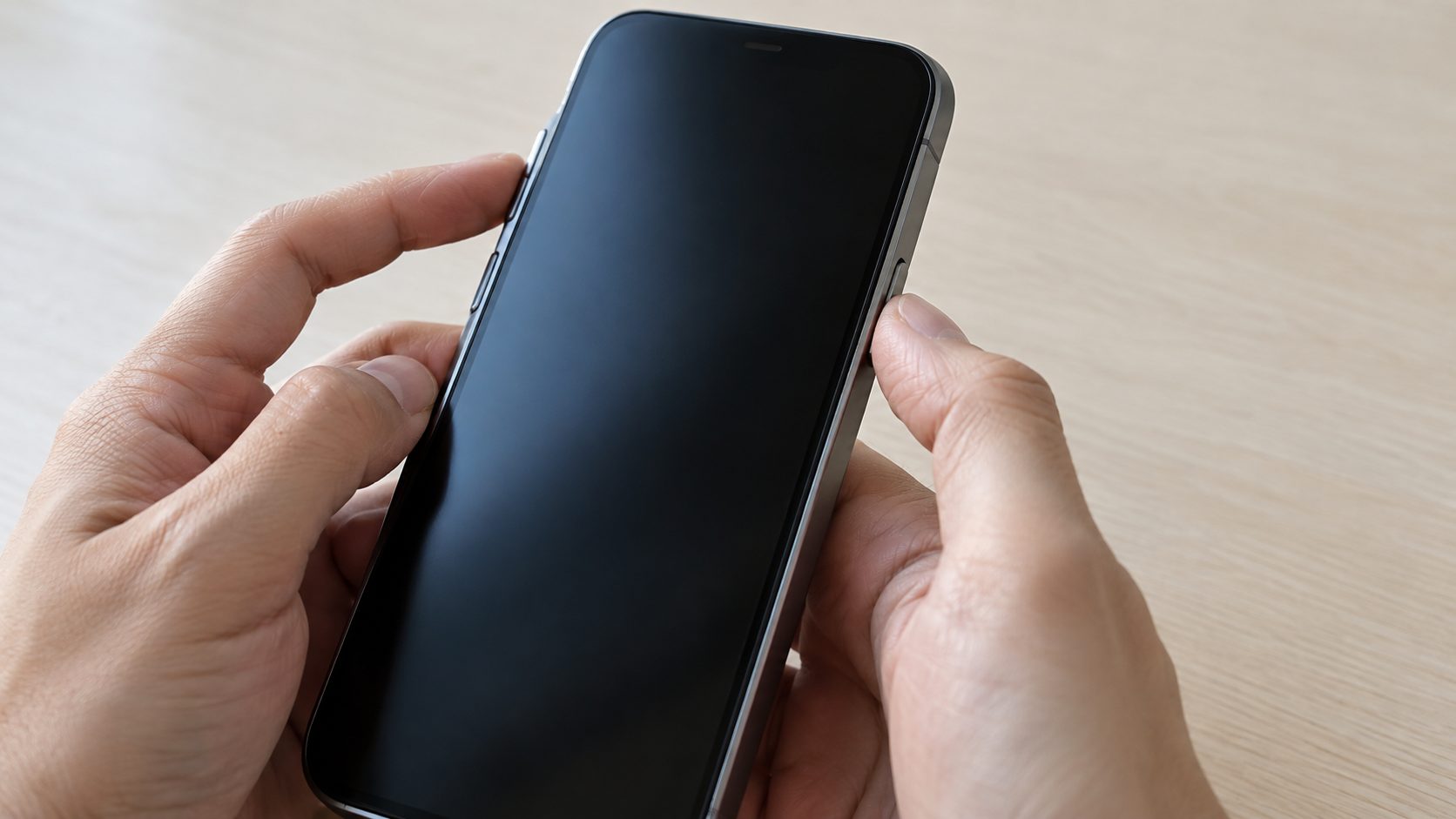
Safe mode pauses downloaded apps to show whether one is to blame. It keeps your data, but Google warns it removes some Home screen widgets, so screenshot your layout first. If you’re working out how to remove virus from phone on a Pixel or Galaxy, start here:
- Pixel 6 and later: hold Power + Volume Up, touch and hold Power off or Restart, then tap OK.
- Pixel 5a and earlier: turn the phone off, press Power, then hold Volume Down while the startup animation plays.
- Samsung Galaxy: press Side key + Volume Down (or tap the power icon in Quick settings), touch and hold Power off, then tap Safe mode.
- Other brands: check your maker’s support page.
If the problem stops, an app is the likely cause; if not, recheck site notifications before a reset. Safe mode also turns on airplane mode; restart normally to exit.
Remove the Bad App Manually, No Antivirus Needed
If a partner or family member may have installed a monitoring app, removing it can alert them. The FTC’s stalkerware guidance says to contact a domestic violence advocate first (US: 1-800-799-7233, thehotline.org) and save evidence.
In safe mode, open Settings > Apps and look for apps you don’t recognize or installed just before the trouble began (Samsung can sort by most recent). This is how to remove virus from phone manually on any Android, no antivirus needed. For each suspect:
- Revoke device admin. A grayed-out Uninstall button usually means the app holds this role; search Settings for “device admin” to remove it.
- Turn off Accessibility access in Settings > Accessibility (on Samsung, under Installed apps), which lets an app read your screen.
- Check special access. In Settings > Apps > Special app access (Samsung: three-dot menu > Special access), turn off Display over other apps (Appear on top) and Install unknown apps for apps that don’t need them.
- Uninstall, then restart normally and check before removing the next one.
If ads are why you’re looking up how to remove virus from phone, the culprit is often an app you chose, such as a QR scanner. When an ad appears, open Recents to see which app owns it, and watch for blank icons or system-sounding names. Skip “cleaner” or “booster” apps.
Scan With Play Protect and Samsung Device Protection, Then Update
For anyone asking how to remove virus from phone for free: the scanners are already installed. Play Protect is on by default, checks apps from Google Play and elsewhere, and can disable or remove harmful ones. Check that Scan apps with Play Protect is on under Play Store > profile icon > Play Protect > Settings.
On a Galaxy, use Settings > Device care (Battery and device care on older One UI) > Device protection > Scan phone, tapping Turn on first if needed. Samsung’s malware guide states: “We do not recommend using third-party anti-malware apps.” On One UI 6.0 or later, keep Settings > Security and privacy > Auto Blocker on to block installs from outside Galaxy Store and Google Play.
Updates matter too when you’re working out how to remove virus from phone, since they patch security holes: Settings > System > Software updates on a Pixel, Settings > Software update > Download and install on a Galaxy.
iPhone: Viruses Are Rare, So Check Profiles, Calendars and Safari
Apple says jailbreaking bypasses iOS security and lists fake security pop-ups and calendar spam among scam tactics. So on an iPhone that hasn’t been jailbroken, how to remove virus from phone means undoing what a scammer added:
Remove unknown configuration profiles
Check Settings > General > VPN & Device Management. Deleting a profile removes its settings, apps and data, so check with IT before touching a work one.
Unsubscribe from spam calendars
In Calendar, tap Calendars, the info button by the unknown calendar, Unsubscribe, then Unsubscribe and Report Junk.
Clear Safari and turn on its protections
In Settings > Apps > Safari (Settings > Safari on iOS 17 and earlier), tap Clear History and Website Data, turn on Block Pop-ups and Fraudulent Website Warning, and turn off Extensions you don’t recognize. If a close button looks fake, type a new address in the Search field.
Check Home Screen web apps, then update
Since iOS 16.4, Home Screen web apps can send notifications: delete unknown ones or mute them in Settings > Notifications. Then update via Settings > General > Software Update and delete apps you don’t remember installing.
Still Infected? Back Up, Then Factory Reset
A factory reset is the last resort for how to remove virus from phone, because it’s the only step that wipes the whole phone.
On Android, back up with Settings > Google (or Google services) > All services > Backup > Back up now; on an iPhone, use iCloud or a computer.
Know your Google Account password (Factory Reset Protection asks for it) and screen-lock PIN; Google says to wait 24 hours after changing that password. An iPhone erase asks for your passcode and Apple Account password.
| Phone | Reset path |
|---|---|
| Pixel and similar | Settings > System > Reset options > Erase all data (factory reset) |
| Samsung Galaxy | Settings > General management > Reset > Factory data reset |
| iPhone | Settings > General > Transfer or Reset iPhone > Erase All Content and Settings |
Charge to at least 70%; a reset can take up to an hour. During setup, skip restoring apps from the backup (the FTC warns it can bring stalkerware back) and reinstall from the store without the suspect.
How to Remove Virus From Phone: Common Questions
Can an iPhone actually get a virus?
Rarely, unless it’s jailbroken; most “virus” alerts are pop-ups, spam calendars or a profile. Targeted spyware is the exception: if Apple sends you a threat notification, follow its steps and consider Lockdown Mode.
How to remove virus from phone without antivirus apps?
Use safe mode to find and uninstall the app, then run Play Protect or Samsung’s Device protection scan.
How to remove virus from phone on Samsung if safe mode won’t start?
Try Samsung’s boot method: power off, hold Volume Down and the Side key, release the Side key at the logo, and keep holding Volume Down until Safe mode appears.
After the Cleanup: Lock Down Your Accounts
After real malware, the FTC advises changing passwords and turning on two-factor authentication. Do it from a clean device, starting with your Google Account, and call your bank if you typed card details on it. If your Windows PC then rejects a new Microsoft password, see Windows won’t let me sign in.
So the real answer to “how to remove virus from phone” is rarely an app: keep Play Protect on, install from official stores, and block notifications from unknown sites. Desktop browser hijacked? See Chrome keeps switching to Yahoo; more fixes are in software and apps.



Leave a comment