

How to Fix Windows Key Problems: Win Lock, Swapped Keys and Shortcuts
A dead Windows key is usually locked, remapped or blocked by a game. Match the symptom, then work from the keyboard's toggle to Windows settings and the registry.
A dead Windows key is rarely broken. Usually a keyboard lock, a game, a remapping tool or a Windows setting is swallowing the press. This guide shows how to fix Windows key trouble by finding which one, cheapest checks first.
The short answer to how to fix Windows key problems: toggle the keyboard’s lock or Game Mode, quit PowerToys and the keyboard app, and test outside full-screen games. Dead on every keyboard? Look for a registry remap or a shortcut-blocking policy.
Is the Key Dead, or Is Windows Ignoring It? A One-Minute Test
Restart the PC, then find where the press gets lost. That decides how to fix Windows key faults on your PC:
- Press Win alone; Start should open. Then try Win + R (Run) and Win + D (desktop).
- Right-click Start. It opens the same Quick Link menu as Win + X; if that fails too, Start or Explorer is the problem, not the key.
- Open the On-Screen Keyboard in Settings > Accessibility > Keyboard (Ease of Access on Windows 10) and click its Windows key. If Start opens, the fault sits between your key and Windows.
- Plug in a second keyboard. A key that fails on every keyboard points to Windows; skip to the Windows-side fixes.
Dead on one keyboard
Other keyboards work. Suspect a Win Lock, Game Mode or the keyboard app. Lock fixes
Win acts like Alt
Win and Alt, or W and the arrows, traded places. Swap fixes
Dead only in games
Fine on the desktop, dead in full screen. Game fixes
Shortcuts fail
Start opens, but Win + X, Win + I or Win + R don’t. Shortcut fixes
How to Fix Windows Key Lock on a Gaming Keyboard
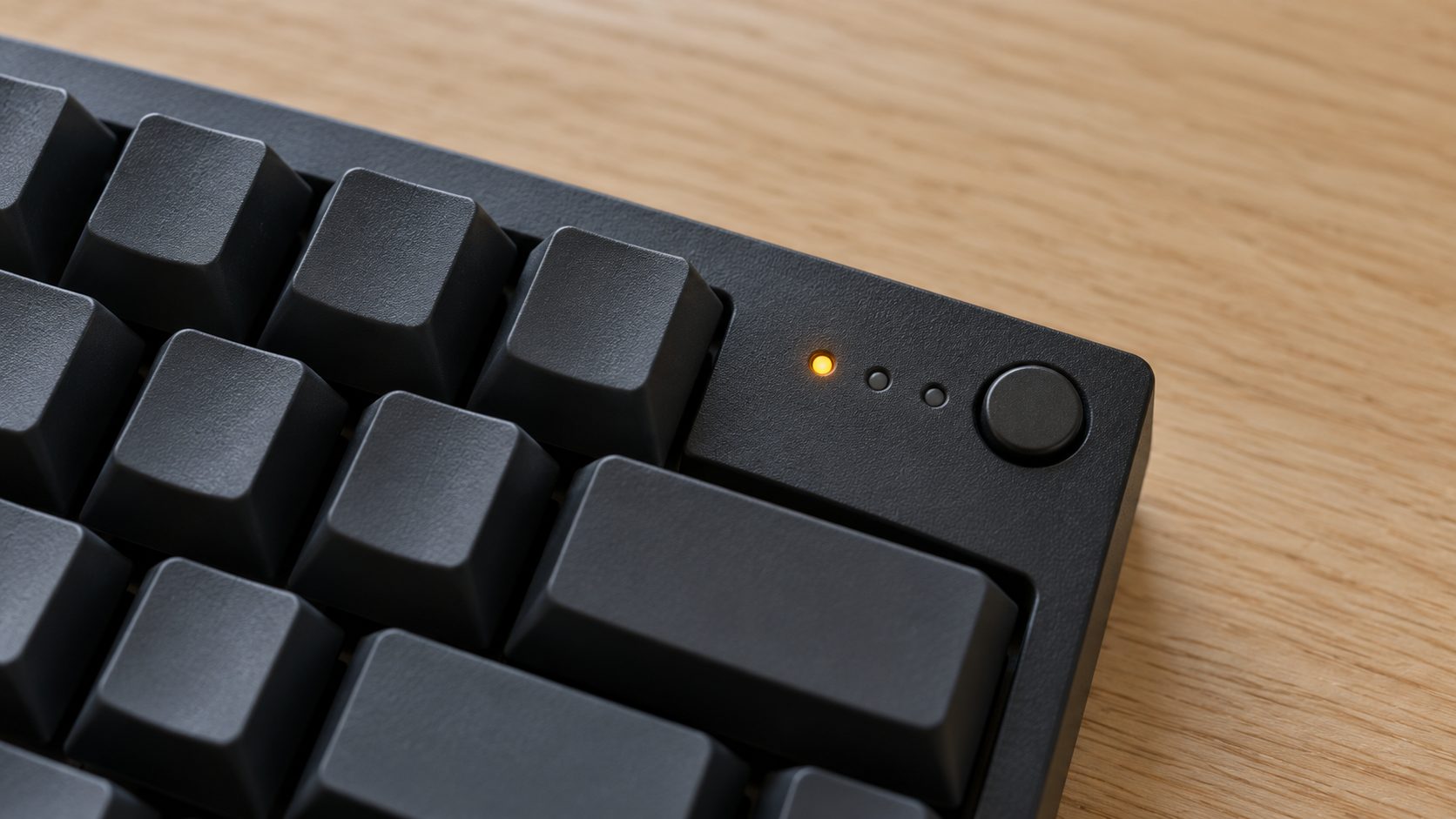
Many gaming keyboards can lock the Windows key so a stray press won’t drop you out of a game. Find the lock icon, button or indicator and toggle it off:
- Logitech G. Game Mode disables the Windows and Context Menu keys and toggles with the Game Mode button; G HUB can rebind it and block more keys, per Logitech’s Game Mode page.
- HyperX Alloy FPS RGB. Its manual lists Fn + F12 as the Game Mode key, which disables the Windows key and lights an indicator. Other HyperX models may differ.
- MonsGeek. The usual cause is an accidental lock; MonsGeek says Fn + Win releases it.
- ASUS ROG laptops. Fn + Win is commonly reported, but ASUS says hotkeys vary by model.
There’s no universal combo. Your keyboard’s manual or the maker’s app shows how to fix Windows key lock on your model.
No lock? Check the key itself
If there’s nothing to toggle, here’s how to fix Windows key hardware problems. Unplug or switch off the keyboard, then tap out crumbs or blow compressed air under the key. On a mechanical board, use a keycap puller; don’t pry laptop keycaps, whose clips break easily. Charge a wireless keyboard or put in fresh batteries.
Check the Keyboard App and PowerToys
G HUB, Razer Synapse, Corsair iCUE, HyperX NGenuity and ASUS Armoury Crate keep profiles that can disable keys; check the active profile and its blocked-key list.
PowerToys is the hidden one: Keyboard Manager remaps keys only while PowerToys runs, so quit it from the tray and press Win again. If the key returns, delete the remap; Microsoft’s Keyboard Manager docs list remapping Win, Ctrl, Alt or Shift as a known cause of broken special keys. Close one tool at a time and retest; that’s how to fix Windows key remaps without guessing.
How to Fix Windows Key and Alt Keys That Swapped Places
When Win acts as Alt, the keyboard is usually in Mac mode. Switching back depends on the brand:
- Keychron. Set the Mac/Windows switch to Windows. If Win and Alt stay swapped, Keychron suggests checking remap software and VIA layers, then a factory reset (hold Fn + Z + J for 4 seconds; confirm it for your model), then reflashing firmware.
- Logitech multi-OS. On the K868, Wave Keys and Alto Keys, hold Fn + P for three seconds for the Windows layout (Fn + O sets Mac).
Where the swap shows up tells you how to fix Windows key swaps. If it follows the keyboard to another PC, it’s the keyboard’s mode or firmware. If every keyboard here is swapped, it’s a Windows remap: PowerToys, or a tool such as SharpKeys writing the Scancode Map below.
W and the arrow keys swapped
On many generic gaming keyboards, Fn + W swaps WASD and the arrows; press it again to undo. The combo varies by brand, so check the manual.
Windows Key Not Working in Games? Why Games Block It
A key that dies only in full-screen games probably isn’t broken. Microsoft’s guidance for game developers tells full-screen games to block the Windows key and restore it when the game loses focus or runs windowed. So here’s how to fix Windows key behavior in a game:
- Alt + Tab out; the key should respond again.
- Use windowed or borderless mode, or a Windows key option in the game’s settings.
- Check the keyboard app for a game profile that turns the lock on.
A clue: Microsoft’s sample notes this block spares Xbox Game Bar shortcuts. If Game Bar is on and Win + G works while Win alone doesn’t, the game is blocking the key.
Some guides blame Game Mode in Settings > Gaming, but Microsoft’s description of it never mentions the keyboard. The keyboard’s own Game Mode is what disables the key.
Start Opens, but Win + X, Win + I or Win + R Do Nothing
When Win alone works, the shortcut that fails tells you how to fix Windows key combos.
Win + X does nothing
If right-clicking Start fails too, restart Explorer: press Ctrl + Shift + Esc, right-click Windows Explorer under Processes and choose Restart. Still broken? Run the DISM and SFC scans in our guide to fixing Windows with CMD.
If right-clicking works but Win + X doesn’t, try Win + R and Win + E. If they fail too, see the policy below; if only Win + X fails, check PowerToys shortcut remaps or an AutoHotkey script.
Only Win + I fails
If Win + R works but Win + I doesn’t, the key is fine and Settings is broken. Our guide to Windows that won’t open Settings or Start shows how to fix Windows key + I failures by repairing Settings.
Every Win + letter shortcut fails
The Turn off Windows Key hotkeys policy blocks shortcuts such as Win + R and Win + E while Start still opens. On a work or school PC, ask IT. Otherwise, open gpedit.msc (Pro, Enterprise and Education only), go to User Configuration > Administrative Templates > Windows Components > File Explorer and set the policy to Not Configured.
On Windows Home, open regedit, export this key with File > Export, then delete its NoWinKeys value if there is one:HKEY_CURRENT_USER\Software\Microsoft\Windows\CurrentVersion\Policies\Explorer
Then restart.
Dead on Every Keyboard? How to Fix Windows Key Faults in Windows
When every keyboard fails, the cause is on the PC. These steps show how to fix Windows key faults there, least risky first.
A wrong registry edit can cause serious problems. In regedit, select the key, choose File > Export, pick a location and click Save. File > Import restores it.
Turn off Filter Keys and Sticky Keys
They’re in Settings > Accessibility > Keyboard (Ease of Access on Windows 10). Filter Keys can make Windows ignore brief presses; switch both off and test.
Close scripts and old keyboard utilities
An AutoHotkey script or similar tool can block or remap Win on every keyboard. Close it, and uninstall keyboard utilities you no longer use.
Try a new user account
Add one in Settings > Accounts > Other users (Family & other users on Windows 10). If the key works there, the cause is in your profile; if not, go to step 4.
Remove a Scancode Map remap
In regedit, open this key (not the similar Keyboard Layouts):HKEY_LOCAL_MACHINE\SYSTEM\CurrentControlSet\Control\Keyboard Layout
A Scancode Map value there remaps keys for all users and every keyboard; a key mapped to 00 is switched off. A likely sign: the On-Screen Keyboard’s Win key opens Start, but no physical keyboard’s does. Export the key, delete only that value and restart.
Reset Windows
The last resort, after a backup: Settings > System > Recovery > Reset this PC (Update & Security > Recovery on Windows 10) with Keep my files; apps are removed. If the reset fails, see our fixes for a problem resetting your PC.
Frequently Asked Questions
Why did my Windows key suddenly stop working?
Usually a lock switched on by accident with a Game Mode button or an Fn combo. Next most likely: a full-screen game, a keyboard-app profile, or a remapping tool such as PowerToys.
How do I unlock the Windows key on a laptop?
Look for an Fn combo or a lock key. Gaming laptops may also keep a Windows key lock in the maker’s control app. Check the manual for how to fix Windows key lock on your model.
How can I tell if my Windows key is physically broken?
If the On-Screen Keyboard opens Start and another keyboard works, suspect yours, but reset it first: settings saved on the keyboard travel with it. Use the reset combo in its manual (Fn + Z + J for 4 seconds on some Keychron boards) or reset its onboard profile in the maker’s app. If it still fails on a second PC with no lock on, even after cleaning, the hardware is faulty: repair or replace it.
Start With the Keyboard, Then Move to Windows
Knowing how to fix Windows key problems mostly means knowing your keyboard: its Game Mode toggle, Fn combos and Mac/Windows switch. Check those and the vendor app before touching Windows.
If every keyboard fails, the Windows steps above show how to fix Windows key faults; export registry keys before deleting anything. More fixes are in our software and apps guides.

Leave a comment