

How to Remove a Virus From a Kindle or Fire Tablet (and When It Isn’t)
Ads on your Kindle's lock screen, or pop-ups on a Fire tablet? Tell Amazon's own ads from real malware, then clean the device in order, with a factory reset last.
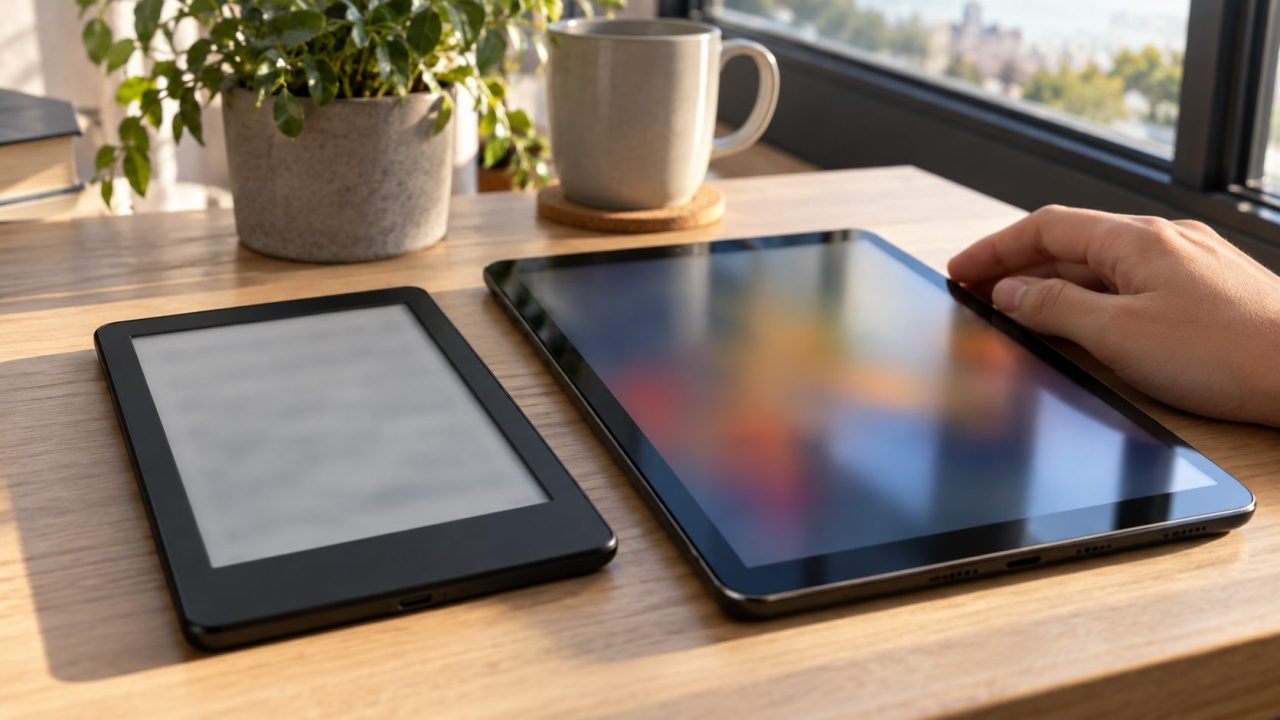
The right answer to how to remove virus from Kindle devices depends on which Kindle you have. An e-reader can’t install apps, so its “virus” is nearly always Amazon’s ads, your account or a file from your PC. On a Fire tablet, it’s usually an app from outside the Amazon Appstore or a website allowed to send notifications.
Kindle E-Reader or Fire Tablet? Check Which One You Have
Kindle e-reader
Kindle, Paperwhite, Colorsoft or Scribe. It runs Amazon’s Kindle software, not Android, and has no app store.
Fire tablet
Fire 7, HD 8, HD 10, Max 11 and Kids editions. Fire OS is Android-based but has no Google services, so no Play Protect.
Alexa or Amazon Kids Tablet
Amazon’s Android models from October 2026, with Google Play. Advice on how to remove virus from Kindle Fire models doesn’t fit them; use the Android steps in our guide to removing a virus from a phone.
Which one you own decides how to remove virus from Kindle hardware, so jump to your section.
On a Kindle E-Reader, the “Virus” Is Usually Ads or Your Account
Many people asking how to remove virus from Kindle Paperwhite or basic Kindle models just saw a sleep-screen ad. That’s Special Offers: screensaver and Sponsored home-screen ads that Amazon says subsidize some models.
In Manage Your Content and Devices, choose Devices, pick the Kindle and select Remove offers. A pop-up shows the one-time fee, charged to your 1-Click payment method; see Amazon’s ad removal page.
Books you never added usually come from Family Library, Kindle Unlimited or Prime Reading borrows, or an address on your Approved Personal Document Email List (Manage Your Content and Devices > Preferences > Personal Document Settings). On a used Kindle, Settings > Your Account shows its registered owner. Return accidental book orders through Your Orders. For purchases nobody made, change your password, turn on two-step verification and deregister unknown devices on the Devices page.
How to Remove Virus From Kindle E-Readers: Scan, Restart, Update
If you’re asking how to remove virus from Kindle e-readers because of strange files, look at your PC. A Windows USB worm can copy .exe, .vbs or shortcut files onto a Kindle that mounts as a drive. They can’t run there, but they shouldn’t stay.
- Scan the PC first. Run a full Windows Security scan, or the computer will copy the files straight back.
- Then check the Kindle. If it gets a drive letter (most pre-2024 models except Scribe), run a Custom scan on that drive from Windows Security > Virus & threat protection > Scan options. Scribe and 2024 or newer models show as “Kindle” or “Kindle Scribe” with no letter: delete any .exe, .vbs, .lnk or autorun.inf files you didn’t add, leaving the system folder alone.
- Restart it. If it’s frozen or slow, hold power until the power dialog appears or the screen goes blank, keep holding for 40 seconds, then release.
- Let it update. Updates install over Wi-Fi. Amazon guarantees security fixes for four years from a new purchase from Amazon, or to a listed date if later (December 31, 2026 for the 2018 Paperwhite); bought elsewhere, only that date counts. Unlisted older models have no guarantee.
How to Remove Virus From Kindle Fire Tablets in Four Stages
If you’re searching how to remove virus from Kindle Fire tablets after a scary pop-up, read the warning below first. Lock-screen ads and Sponsored tiles in the Continue or Discover row are Amazon’s Special Offers, not malware. Pay to remove them, or turn off recommendations at Settings > Apps & Notifications > Amazon App Settings > Home Screens.
Real trouble looks like full-screen ads over other apps, apps you didn’t install, notification spam or browser redirects.
A page, pop-up or call saying your Kindle is infected and asking you to phone support is impersonation. Amazon’s red flags include false urgency, requests for login or payment details, and gift-card payment. Don’t call; go to amazon.com directly.
This is how to remove virus from Kindle Fire tablets in order: stages 1 and 2 remove the cause, and 3 and 4 close the door it came through.
Block Silk notifications and clear browsing data
Fake “virus detected” alerts come from site notifications you once allowed. Block those sites in Silk’s menu at Settings > Site settings > Notifications, or turn off Silk Browser’s notifications under Settings > Apps & Notifications (Apps & Games on older models). Then open Amazon Application Settings > Silk Browser > Privacy > Clear browsing data; labels vary by version. For a search engine that keeps changing, see Chrome switching to Yahoo.
Remove the bad app
In Settings > Apps & Notifications > Manage All Applications, tap any app you don’t recognize, then Force Stop and Uninstall; pre-installed Amazon apps can’t be removed. If Uninstall is greyed out, the app is likely a device administrator: turn it off under Settings > Security & Privacy > Device Administrators (labels vary), then uninstall. If a pop-up blocks you, try Safe Mode, which loads without downloaded apps. Amazon notes a volume button held at startup triggers it; to leave, hold power, tap Shut Down and power on.
Close the sideloading door
Here’s how to remove virus from Kindle Fire tablets for good: switch off Apps from Unknown Sources, usually under Settings > Security & Privacy. Fire OS 7 and 8 grant it per app, so turn it off for the browser or file manager; Fire OS 5 and 6 have one switch. Developer Options appears only after someone taps the serial number seven times; if you didn’t, turn off USB debugging there.
Update Fire OS and check its support window
Updates install automatically; to check now, open Settings > Device Options > System Updates. Amazon promises security updates for four years from purchase new from Amazon, or to the listed date if later (December 31, 2029 for the 2024 Fire HD 8); bought elsewhere, only that date. Fire OS 7 models (8th to 11th gen) aren’t listed, so there’s no promise for them.

Do You Need an Antivirus App on a Fire Tablet?
Many guides on how to remove virus from Kindle Fire devices end with a list of security apps. You don’t need one: removing the app and the permission that let it in is the fix, and no scanner adds security patches. Stick to the Amazon Appstore and skip “cleaner” apps.
Cleaning Up a Kids Fire Tablet With the Parent Dashboard
The answer to how to remove virus from Kindle Fire Kids editions is the same four stages, then a lockdown. Give each child a profile (Settings > Profiles & Family Library > Add a child profile) and use the Amazon Kids Parent Dashboard to control app store access, purchases, browsing and time limits.
A 2026 Amazon Kids Tablet (8.7-inch or 11-inch) runs Android instead: use the Android steps and manage Google Play access in Parent Dashboard.
On a standard Fire tablet, Content Filtering at Settings > Apps & Notifications > Amazon App Settings > Special Offers hides mature lock-screen ads. Amazon notes that Parental Controls alone don’t remove mature content, so give under-13s a child profile. A forgotten parental controls password needs a factory reset.
Last Resort: Factory Reset Without Losing More Than You Must
A reset is the last step in how to remove virus from Kindle devices, not the first.
On a Fire tablet it removes all downloaded content, including in-app purchases, and deregisters the tablet. On an e-reader it removes personal data, downloads and anything not synced, so sync on Wi-Fi first. Purchases stay on your account.
On a Fire tablet, export calendars (.ics) from Calendar and contacts (.vcf) via Contacts > Import/export > Export to storage, then copy both from Docs > Local Storage to a computer. Eject any microSD card and follow Amazon’s Fire reset steps: swipe down twice, then Settings > Device Options > Reset to Factory Defaults.
On an e-reader, swipe down for Quick Actions (or tap Menu), then Settings or All Settings > Device Options > Factory Reset (Reset Device on older models) > Yes. Then register it again.
Frequently Asked Questions
Can a Kindle Paperwhite, Colorsoft or Scribe get a virus?
Rarely. E-readers can’t install apps, but in 2021 Check Point researchers showed a booby-trapped e-book could take over an out-of-date Kindle; Amazon fixed it in firmware 5.13.5. Keep it updated and limit your Approved Personal Document Email List to senders you know. For most owners, how to remove virus from Kindle e-readers comes down to ads, the account and a PC check.
Is a “virus detected” pop-up in Silk real?
No. It’s a website trying to scare you. Block its notifications as in stage 1, clear browsing data, and never call the number shown.
How to remove virus from Kindle Fire without losing books?
Stages 1 to 4 don’t touch your library. Even after a reset, purchased books download again once you register the tablet.
How to remove virus from Kindle Fire if Settings won’t open?
Hold power for 40 seconds to restart it. If Settings still won’t open, Recovery Mode is what’s left, and it wipes the tablet like a normal reset (see the warning above). Power off, hold power and volume down (on most models), pick Wipe data/factory reset with the volume buttons, select it with power, and confirm.
Recap: Match the Fix to the Device
E-reader: rule out ads and account issues, scan the PC, update. Fire tablet: block notifications, remove the app, close unknown sources, update; reset only if that fails.
That’s how to remove virus from Kindle devices without a paid cleaner. More fixes are in our software and apps guides.


Leave a comment