

Why Does Android Auto Keep Stopping? Fixes for Crashes and Loops
A crash message, a car screen that drops to its own menu, or just Maps or Waze dying? Find which you have, then work through six fixes from safest to most drastic.
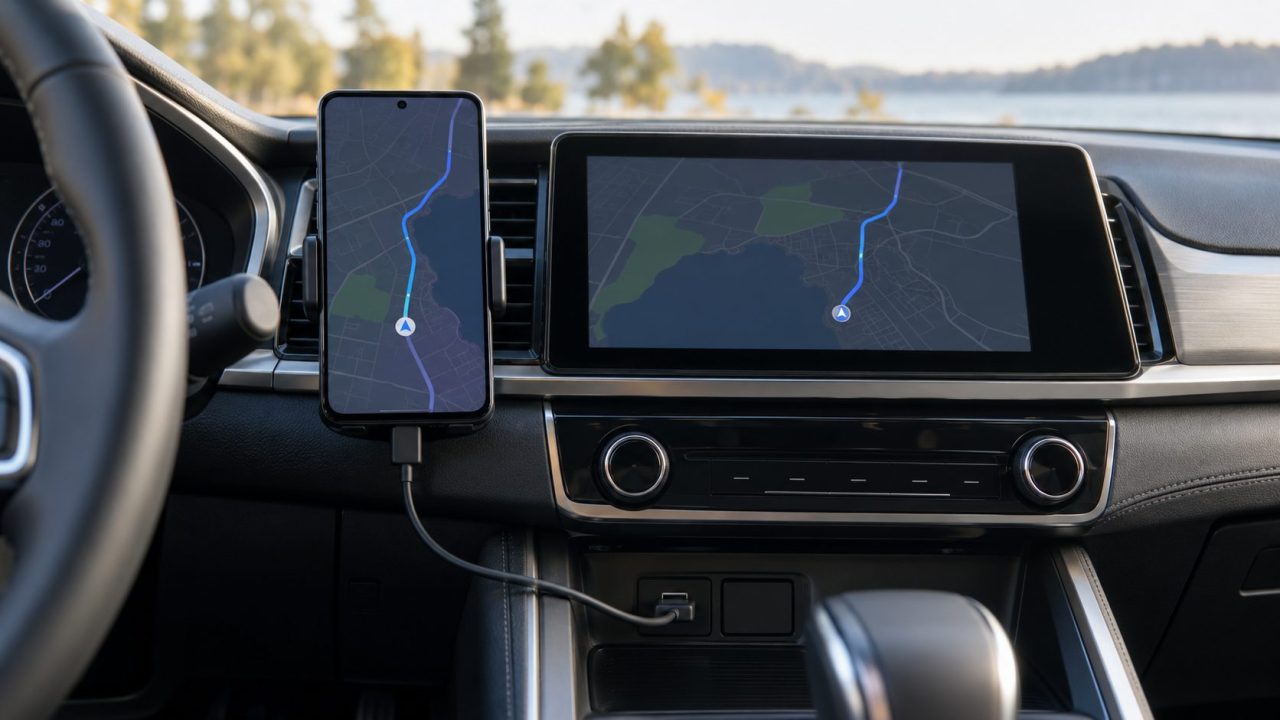
Why does Android Auto keep stopping? First work out what stops: Android Auto itself, the car screen, or just Maps, Waze or a music app. The fixes run from harmless to drastic, with a warning before anything that erases data.
Why Does Android Auto Keep Stopping? Find What Actually Stops
Why does Android Auto keep stopping with a message on your phone? It crashed, and Android shut it down. If there’s no message, the phone may be closing it, a button press may have ended it, or the connection dropped.
A crash message on the phone
A real crash in Android Auto itself. Start with Steps 1 to 4.
The car screen keeps closing or restarting
The car falls back to its own home screen. If the phone also stops charging or shows as disconnected, the connection dropped (see below). If not, a short voice-button press may be the cause; otherwise, see Steps 1 to 5.
Only Maps, Waze or a music app crashes
Android Auto stays up while one app closes. Fix that app first.
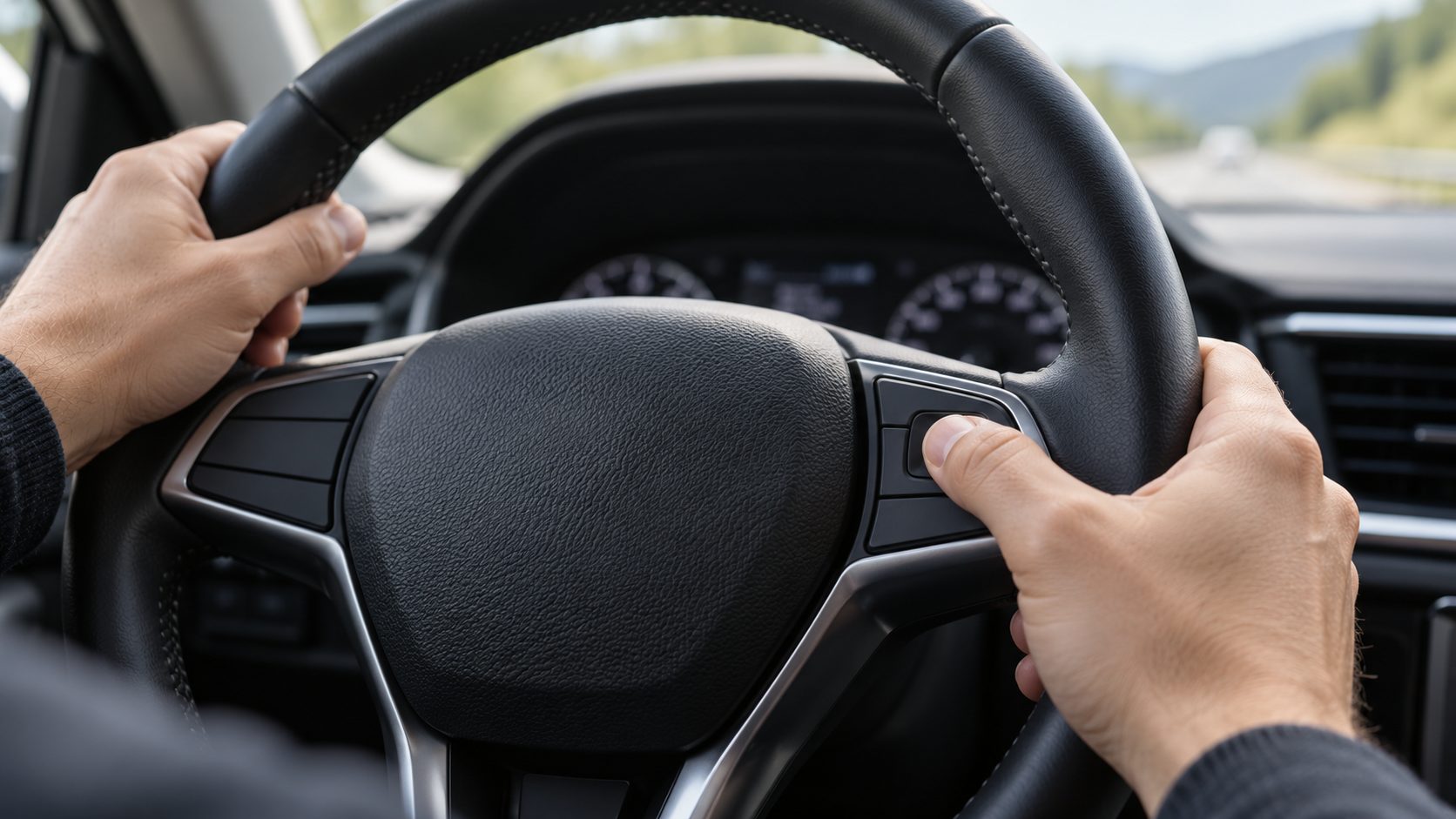
Why does Android Auto keep stopping only over bumps or when the cable moves? That’s a connection fault, not a crash: start with Google’s Android Auto troubleshooting page, which recommends a USB cable under 1 meter with no hubs.
Steps 1 to 4: Restart, Force Stop, Update, Clear the Cache
Nothing here erases data; test in the car after each step. Searching Settings for “Android Auto” opens its settings, but Force stop and Storage are on its App info page in the Apps list (tap Show system apps if it’s hidden).
Restart both ends
Restart the phone, then the car’s infotainment system.
Force stop
Settings > Apps > See all apps > Android Auto > Force stop (Samsung: Settings > Apps > Android Auto), then the same for the app that failed.
Update everything
Android Auto, the Google app, Play services, the crashing app, WebView and Android itself.
Clear the cache
In App info, Storage & cache > Clear cache (Samsung: Storage). Not Clear storage yet.
For Step 3, tap your profile picture in the Play Store > Manage apps & device > Update all. Update Play services from Settings > your profile picture (or Google) > All services > System services > Google Play services > Update, then install system updates and any carmaker firmware update.
Why does Android Auto keep stopping even when it’s fully up to date? It shares Play services and Android System WebView with other apps, so one bad update there can crash many of them. In 2021, Samsung’s UK support site reported a WebView update that made apps such as Waze close on launch until fixed versions arrived.
Step 5: Stop Battery Savers From Closing Android Auto
Why does Android Auto keep stopping when no crash message appears? Stock Android shouldn’t put it to sleep while it’s projecting, least of all on a wired connection where the phone is charging. Suspect Battery Saver and the extra app-sleeping tools some brands add, mostly with wireless Android Auto.
As a low-risk test, turn Battery Saver off and set Android Auto and your car apps to Unrestricted in App info > Battery (App battery usage on recent Pixels). On Android 11 and older, choose Don’t optimize under Special app access > Battery optimization > All apps.
Samsung owners asking “why does Android Auto keep stopping?” have one more place to look, because One UI adds its own sleep lists:
- Background usage limits. In Settings > Battery (Battery and device care > Battery on older One UI) > Background usage limits, move Android Auto and your car apps from Sleeping or Deep sleeping apps to Never auto sleeping apps.
- Apps missing from the car. Google notes Samsung may disable apps you haven’t used lately, so they vanish from Android Auto’s launcher. Open the app once, or turn off Put unused apps to sleep.
- Xiaomi, Redmi and POCO. MIUI and HyperOS add their own battery saver. In each app’s App info, open Battery saver and choose No restrictions (names vary).
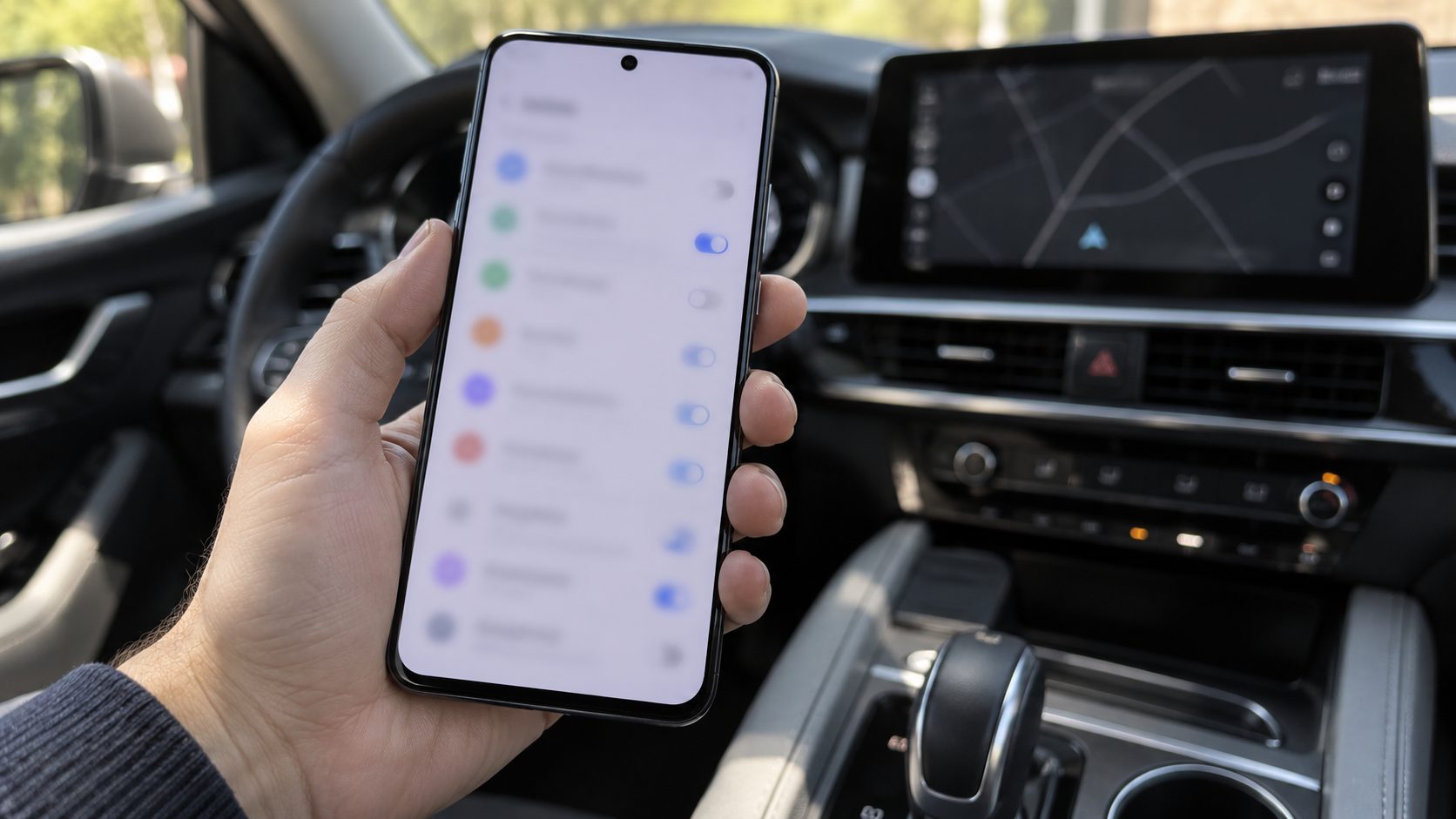
Step 6: Forget the Car, Clear Storage, Roll Back Updates
Why does Android Auto keep stopping after Steps 1 to 5? Its saved data or car pairing may be corrupted, so reset them in this order.
Clearing storage or uninstalling updates erases Android Auto’s saved cars and settings. Do it parked, with the phone unlocked and a few minutes for setup. Don’t clear Google Play services’ storage: Google advises against it unless all else fails, since it can delete saved passwords and transit cards.
- Forget the car. Unplug the phone, open Settings > Connected devices > Connection preferences > Android Auto > Previously connected cars, tap the top-right menu > Forget all cars, then plug in again. That’s the Pixel-style path; elsewhere, search Settings for “Android Auto”.
- Clear storage. Storage & cache > Clear storage (Samsung: Storage > Clear data), then restart.
- Uninstall updates. On Android 10 and later, Android Auto is built in and can’t be removed. In App info, tap the three-dot menu > Uninstall updates to restore the version in your system image, restart, then update it again in the Play Store before reconnecting.
When Only Google Maps, Waze or a Music App Crashes
If Android Auto stays open and only one app closes, “why does Android Auto keep stopping?” is the wrong question: fix that app. If it also fails with the car unplugged, the fault is the app’s. Music apps such as Spotify follow the Maps steps.
Google Maps keeps stopping in Android Auto
Update Maps and clear its cache. If it still crashes, clear its storage, which permanently deletes its data on the phone, including downloaded offline maps. Google’s Maps crash page lists each brand’s path.
Waze keeps crashing
Update it and clear its cache. If it still crashes only in the car, Waze asks for debug logs and a support ticket.
Android Auto Keeps Asking for Permission or to Unlock the Phone
Why does Android Auto keep stopping to ask for the same permission? Nothing crashed: a permission was reset, never saved or newly added. Use the steps above, plus these checks.
- Unused-app reset. Android strips permissions from apps unopened for months, such as a messaging app used only in the car. In App info, turn off Pause app activity if unused (Android 13+), Remove permissions and free up space (12) or Remove permissions if app isn’t used (11, under Permissions).
- Notification access. Android Auto needs this special permission to show messages in the car. Search Settings for notification access (Device & app notifications on recent Pixels; names vary by brand) and allow Android Auto. If it’s on but the prompt returns, turn it off, restart and turn it back on.
- Messaging app notifications. On Android 13 and later, also allow the messaging app’s own Notifications in its App info.
- New permissions after updates. Updates can add permissions: accept them on the unlocked phone, then check Android Auto’s App info > Permissions for denied ones such as Phone or SMS.
- Unlock prompts. While parked, unlock the phone and accept any prompts; some versions of Android Auto’s settings offer Start Android Auto while locked. Extend Unlock (Pixel: Settings > Security & privacy > More security & privacy; Samsung: Lock screen settings) can keep the phone unlocked near the car’s Bluetooth, but Google warns the link can be imitated and reaches up to 100 meters, so anyone nearby could use your phone.
Why Does Android Auto Keep Stopping? Quick Answers
Why does Android Auto keep stopping and restarting on the car screen?
Check the phone right after it happens: a crash message points to Steps 1 to 4, no message to the cable, the voice button or Step 5.
Why does Android Auto keep stopping after an update?
Restart, accept any new permissions on the unlocked phone, and check the Play Store for newer Android Auto, Play services and WebView updates before Step 6.
Why does Android Auto keep stopping on Samsung phones?
Check the sleep lists in Step 5 first, then install updates from Settings > Software update > Download and install.
Why does Android Auto keep stopping when I use voice?
Hold the voice button until you hear the tone. Google says a short press can exit Android Auto, which you then have to restart.
What Android version does Android Auto need?
As of October 2026, Google lists Android 9.0 or later with an active data plan; wireless also needs 5 GHz Wi-Fi and Android 11. Go edition phones aren’t supported.
Still Stopping? Send Google a Bug Report
If you’re still asking “why does Android Auto keep stopping?” after all six steps, send Google a bug report and follow every step: you turn on debug logging, capture the fault from the car screen and send the log from your phone. If Android Auto has already closed, use the phone’s Power menu > Bug report instead.
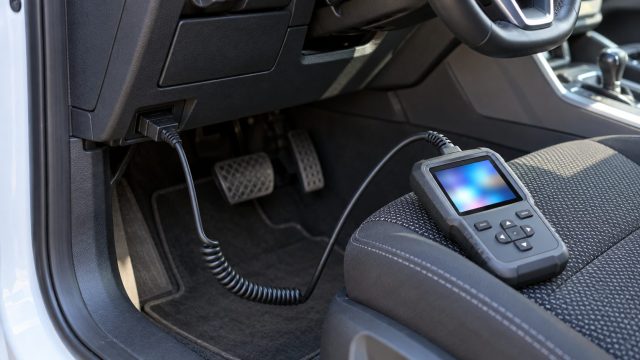
For other car trouble, see what to do when an OBD2 scanner won’t connect, or browse our car tech guides and the Tech Guides home page.


Leave a comment