

Why Is My Phone Zoomed In? How to Zoom Out on iPhone and Android
A zoomed-in phone is almost always an accessibility feature, not a fault. Find out which zoom is on, get out of it on iPhone or Android, and keep it off.
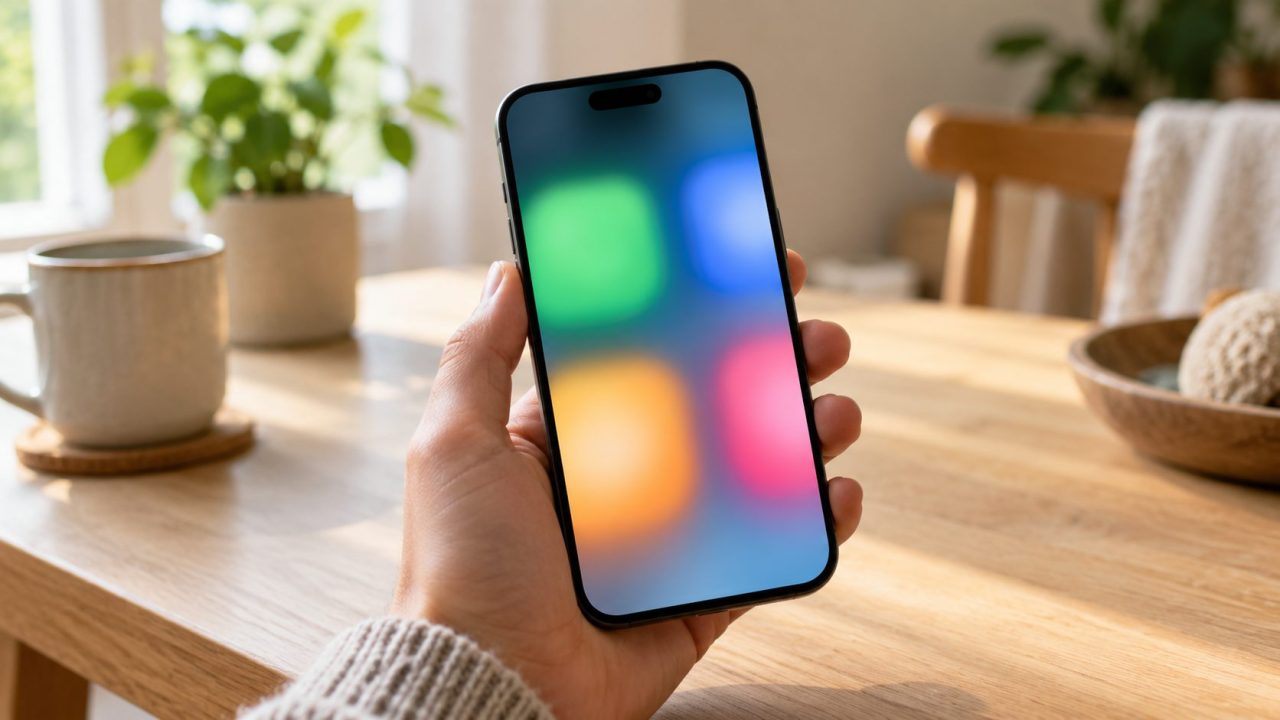
Why is my phone zoomed in? Almost always because a gesture or shortcut switched on a feature by accident. iPhone Zoom, Android Magnification, a display size setting and an app’s own zoom each have a different way out, and each can be kept from coming back.
Why Is My Phone Zoomed In? Match What You See to the Fix
iPhone: double-tap the screen with three fingers, then turn Zoom off in Settings > Accessibility > Zoom. Android: repeat the shortcut that turned on magnification, usually a triple-tap or the accessibility button. Hold both volume keys only if that’s the shortcut; on many phones it starts TalkBack instead.
No change? Then it’s another kind of zoom:
| What you see | What’s on | Way out |
|---|---|---|
| Whole screen magnified (iPhone, Android) | iPhone Zoom or Android Magnification | See above |
| A box enlarges part of the screen | Window Zoom or partial magnification | Same as above |
| Everything bigger, but it all fits | Display Zoom or Display size | Set back to Default |
| One website or app only | That app’s zoom | Reset page zoom |
| Only the Lock Screen photo | Wallpaper position | Reposition the photo |
| Magnified and gray | Zoom Filter: Grayscale | Filter: None |
| One photo or map only | Pinch-to-zoom | Pinch closed |
iPhone Zoom: Zoom Out With Three Fingers, Then Switch It Off
Why is my phone zoomed in on an iPhone? Usually the Zoom accessibility feature is on; Apple says magnified Home Screen icons are the telltale sign. Its gestures use three fingers:
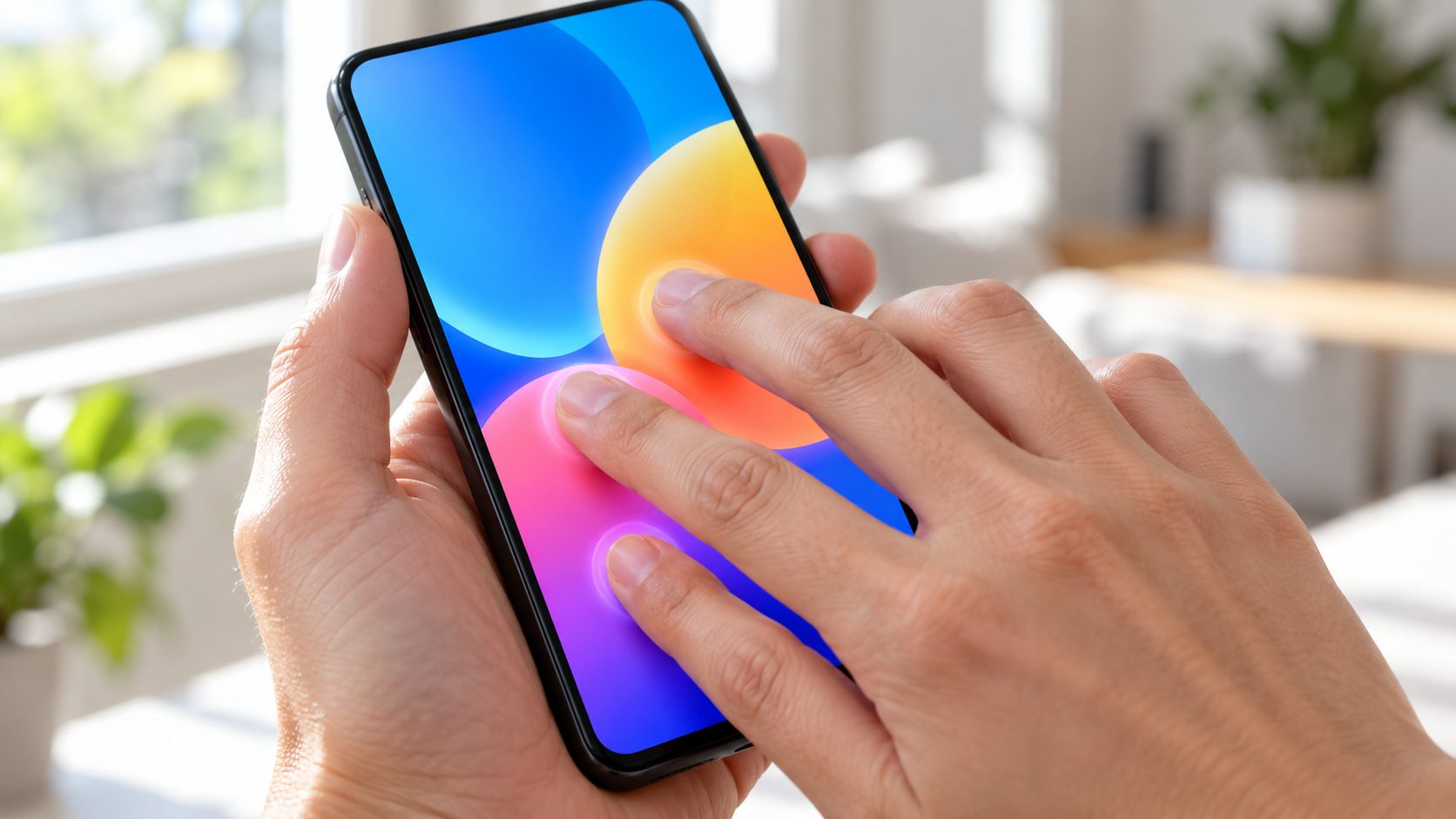
- Double-tap with three fingers to zoom out, or back in. Keep your fingers slightly apart and tap quickly.
- Drag with three fingers to move around while zoomed.
- Double-tap with three fingers and drag up or down, without lifting after the second tap, to change the magnification.
- Triple-tap with three fingers to open the Zoom menu: region, filter, lens size and controller.
Zoom stays enabled after you zoom out, so a stray three-finger double-tap brings it back. Switch it off in Settings > Accessibility > Zoom or with the Accessibility Shortcut.
A box magnifying only part of the screen is Window Zoom, a resizable lens; the same double-tap closes it. If the box appears whenever the keyboard opens, turn off Smart Typing in the Zoom settings.
iPhone Won’t Zoom Out? VoiceOver, a Locked Screen and the Computer Fix
If the double-tap does nothing, it may not be Zoom: Display Zoom and Safari’s Page Zoom ignore it.
Why is my phone zoomed in and talking?
VoiceOver is on too. A tap now only selects an item and a double-tap opens it, so the phone isn’t frozen. The three-finger double-tap still belongs to Zoom.
To turn VoiceOver off, ask Siri, triple-click the side or Home button if VoiceOver is your Accessibility Shortcut, or use Control Center if you’ve added it. In Settings > Accessibility > VoiceOver, tap the switch, then double-tap it. A black screen that still talks is Screen Curtain; with Zoom on, a three-finger quadruple-tap toggles it.
Why is my phone zoomed in and stuck at the passcode?
Zoom doesn’t block the passcode. Face ID or Touch ID still works, one-finger taps still enter digits, and a three-finger drag pans the keypad into view.
Can’t reach Settings? Apple’s article on a magnified iPhone gives a computer method. It needs the iPhone unlocked: by default, a locked iPhone won’t talk to a Mac or PC.
- Connect the unlocked iPhone. On a computer it hasn’t trusted before, tap Trust and enter your passcode.
- Open Finder (macOS Catalina or later), iTunes (macOS Mojave or earlier), or the Apple Devices app or iTunes on Windows, and select the iPhone.
- Choose Configure Accessibility, clear Zoom and click OK.
Zoom is a setting, not damage. Erasing deletes anything not backed up and isn’t needed to fix it.
Android Magnification: How to Zoom Out on Pixel, Samsung and Others
Why is my phone zoomed in on Android? Magnification, usually, and the shortcut that started it also stops it:
- Triple-tap screen. Triple-tap again. While zoomed, pinch with two fingers to change the zoom; drag two fingers to pan.
- Accessibility button. Tap the small person icon again, in the navigation bar or floating on screen. With gesture navigation, it may be a two-finger swipe up instead.
- Quick Settings. Tap the Magnification tile, if you added one.
- Hold volume keys. Press and hold both again, but only if that’s your magnification shortcut.
Phone talking or drawing a box around items? That’s TalkBack. Hold both volume keys for a few seconds to turn it off, or go to Settings > Accessibility > TalkBack (tap to select, double-tap to activate).
A movable magnifying window is partial-screen magnification; the same shortcut closes it. Menus vary by brand and Android version: Samsung puts Magnification under Accessibility > Vision enhancements (Visibility enhancements on older One UI). Otherwise see Google’s Magnification guide.
Everything Bigger, or Just One App? Zoom That Isn’t Accessibility
Why is my phone zoomed in when nothing pans? A size setting is enlarging everything, so the gestures above won’t help.
On iPhone, that’s Display Zoom: Settings > Appearance > Display Zoom on iOS 27, or Settings > Display & Brightness on iOS 26 and earlier. Choose Default and confirm.
On Android, search Settings for Display size and move the slider to a smaller size, or tap Reset settings. On Galaxy phones, it’s Settings > Display > Screen zoom (Screen layout and zoom on Z Fold models).
Why is my phone zoomed in on just one website?
Browsers save zoom per site. In Safari on iPhone, tap the Page Menu button left of the search field, tap Page Zoom and tap the small A until it reads 100%. In Chrome on Android, open the three-dot menu, tap Zoom and set it to 100%.
No Zoom in Chrome’s menu? Turn on Show zoom option in main menu under Settings > Accessibility. The Default zoom slider there enlarges every site.
Why Is My Phone Zoomed In and Black and White?
iPhone Zoom has a Grayscale filter. Triple-tap with three fingers, tap Choose Filter and pick None, or set Settings > Accessibility > Zoom > Zoom Filter to None. With VoiceOver on, use Settings, since VoiceOver also uses the three-finger triple-tap.
Still gray after zooming out? Check Settings > Accessibility > Display & Text Size > Color Filters.
On Android, gray only at night can be Bedtime mode’s Grayscale option in Digital Wellbeing. Otherwise check Settings > Accessibility > Color and motion > Color correction, which has a Grayscale mode. Galaxy phones differ: look in Modes and Routines and Vision enhancements.
Stop the Zoom From Coming Back
If you keep asking “Why is my phone zoomed in again?” the feature is still enabled, and a stray gesture or shortcut switches it back on. Remove the triggers:
Accessibility Shortcut
Triple-clicking the side button (Face ID models) or Home button toggles what’s checked in Settings > Accessibility > Accessibility Shortcut. Uncheck Zoom.
Back Tap
If you don’t use Back Tap, set Double Tap and Triple Tap to None in Settings > Accessibility > Touch > Back Tap.
Other iPhone triggers
The Action button (supported models), Control Center, Siri, Vocal Shortcuts and Shortcuts app automations can toggle Zoom too. Remove it from any you’ve set up.
Android shortcuts
In Settings > Accessibility > Magnification, turn off Magnification shortcut. On Android 14 and later, you may need to tap it, unselect each shortcut and tap Save.
Apple lists these triggers on its accessibility shortcuts page. Dropping Android’s triple-tap also helps, since Google says it slows single taps slightly and may slow the device.
Frequently Asked Questions
Why is my phone zoomed in on the lock screen?
If only the wallpaper looks cropped, the photo is zoomed: on iPhone, touch and hold the Lock Screen, tap Customize, then pinch closed and drag with two fingers (Android steps vary by brand). If everything is magnified, Zoom or Magnification is on; you can still unlock normally.
Why is my phone zoomed in after someone else used it?
Whoever had it probably switched on Zoom or Magnification, by accident or as a joke. It’s a setting, not damage: zoom out, then turn off the feature and its shortcut.
Why is my phone zoomed in on a Samsung Galaxy?
Same causes, different menu names: Magnification sits under Accessibility > Vision enhancements, and Screen zoom under Settings > Display.
Why is my phone zoomed in even after a restart?
Restarting doesn’t switch these features off; the settings and their shortcuts survive it. If an Android phone is still enlarged after rebooting, check Display size and Font size.
Zoom Out First, Then Disarm the Shortcut
So, why is my phone zoomed in? Usually an accessibility zoom that a three-finger double-tap (iPhone) or the magnification shortcut (Android) undoes. If nothing pans, check size settings and app zoom, then turn off the shortcut that started it.
More fixes are in our mobile guides, including how to transfer an eSIM to a new phone and why a phone stops charging at 80%.

Leave a comment