

Controller Works in Menus but Not in Game? Fixes for PC and Console
Works in Windows, Steam or the console menu? Then it's connected. Find the layer dropping input: Steam Input, a game toggle, a second mapper or a console setting.
A controller not working in game but fine in Windows, Steam or the console menu usually isn’t broken, if every input passes a quick test. Something between it and that one game is ignoring or rewriting the input.
This guide skips pairing. If the pad won’t power on, see our guide to a controller not turning on.
Controller Not Working in Game but Fine in Menus? Find Where Input Stops
Watch what the pad does in the problem game. A controller not working in game at all needs a different fix from one that presses the wrong buttons.
| What you see | Likely cause | Go to |
|---|---|---|
| Dead in one PC game, fine in Steam | Steam Input setting for that game | Steam Input |
| Dead in a game from another launcher | Steam’s overlay can’t reach it | Launchers |
| Ignored in one game, whatever Steam is set to | Game toggle, or no support for this pad | Game settings |
| Works wired, not over Bluetooth | USB-only PlayStation support | Support |
| Double or wrong presses | Two tools translating at once | Double input |
| Works on the console home screen only | Wrong pad, user or a leftover remap | Console |
First, a 30-second input test
Menus mostly use the D-pad and A/B, so test every button, stick and trigger. On Windows, press Win+R, type joy.cpl and open the pad’s Properties. On Switch, use System Settings > Controllers and Sensors (Controllers & Accessories on Switch 2) > Test Input Devices. An input that never registers points to hardware.
Check That the Game Supports Your Controller
Not every game supports every controller, which alone can explain a controller not working in game. On Steam, Full Controller Support means a controller alone is enough; with Partial Controller Support, a mouse and keyboard “may be required from time to time,” per Steam’s Big Picture mode FAQ.
Some PC games also read only XInput, built for Xbox-style pads; Microsoft’s XInput documentation says “XInput will not recognize” legacy DirectInput devices. So a generic pad can pass the Windows test and still leave you with a controller not working in game. Steam Input can present it as an Xbox pad, if Steam recognizes it.
Works wired, not over Bluetooth?
Depending on how a game added PlayStation support, Valve says, it “may only support the device over USB”; Steam notes this on the store page and in your Library. So a DualSense controller not working in game over Bluetooth is usually a game limit. Use a cable, or enable Steam Input for that game (below).
Steam Input: The Usual Cause of a Controller Not Working in Game on PC
On Windows, Steam Input injects an emulated Xbox pad through the Steam Overlay, so your controller “will show up in your game as an Xbox controller,” Valve says. With Steam Input off for that game, or no overlay, your Steam layout does nothing.
Since late 2023, Steam sends PlayStation pads to a game’s own PlayStation support when it has some, and through Steam Input when it doesn’t. So test each game:
Open the override
Right-click the game in your Library, then Properties > Controller.
Force it on
Pick Enable Steam Input, quit the game fully and relaunch it from Steam. Test in gameplay, not menus.
Force it off
Still dead, or doubled? Pick Disable Steam Input and relaunch. Keep whichever works, or go back to Use default settings.
Valve revised Steam’s controller settings in April 2026, so labels may differ. If Steam Input works in no game, turn the overlay on in Steam > Settings > In Game and the game’s Properties > General.
Bought on Epic, EA or Ubisoft? Start the Game From Steam
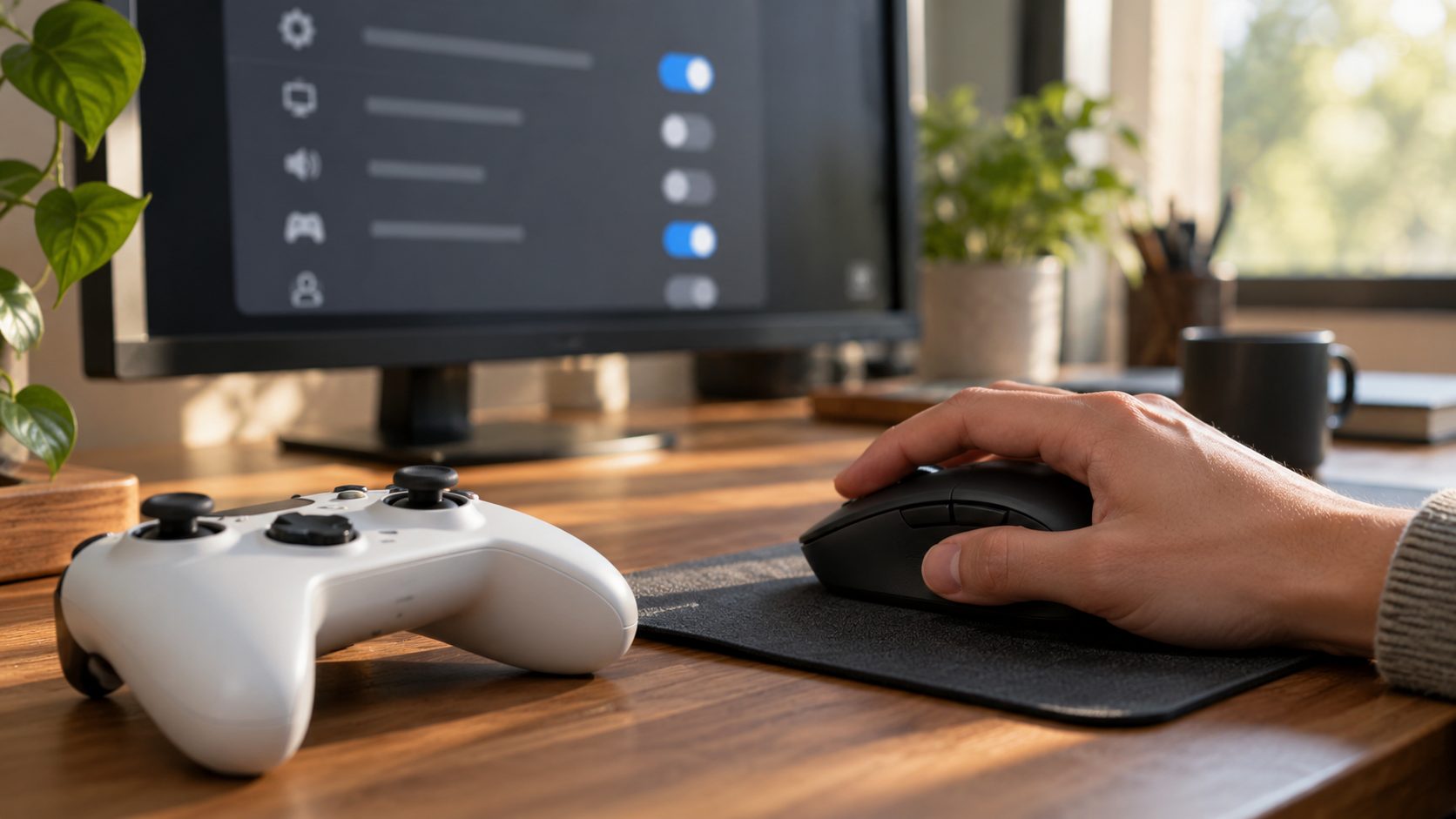
Launch from the Epic Games Launcher, EA app, Ubisoft Connect or Xbox app and the game skips your Steam setup, leaving a controller not working in game while Steam’s menus respond. Add it with Games > Add a Non-Steam Game to My Library and launch it from Steam.
Valve lists games that won’t cooperate: anti-cheat that blocks emulated input, launchers that must run as administrator, no overlay support, or no way to add the game to the Library, as with some Xbox app titles. Use native support for those. And Steam left open can keep turning your pad into mouse and keyboard input with its desktop layout, so close it while you test.
The Game’s Own Controller Switch: Fortnite, Rocket League and Wheels
Some games have their own controller toggle under Controls or Input. If it’s off, no Steam setting will fix a controller not working in game. Known cases:
- Fortnite on PC. Open Settings > Mouse and Keyboard and set Ignore Controller Input to Off, Epic says. If building fails, set Lock Input Method as Mouse to Off too.
- Rocket League on PC. Epic says Steam Controller Configuration “allows Rocket League inputs to be handled by Steam instead of by Rocket League.” For a Rocket League controller not working in game, try the Steam Input test both ways; the Epic version gets Steam Input only when started from Steam.
- Wheels and flight sticks. Valve tells developers to keep generic wheels and sticks out of Steam Input “because Steam doesn’t support remapping those devices,” so disable Steam Input for that game.
Double Presses or Wrong Actions: Let Only One Tool Translate
Doubled presses are the opposite of a controller not working in game. A game can get a pad through Steam Input even when it supports it natively, Valve confirms, so it may read both your real and virtual pads.
- Close other controller tools: DS4Windows-style mappers, peripheral suites such as Razer Synapse and XInput emulators.
- Unplug the keyboard, mouse and other pads, wheels or sticks as a test; some games lock onto one device.
- Update Steam: the September 2025 client fixed Xbox and PlayStation pads being duplicated with Steam Input on.
- Keep one translator: Steam Input or the game.
The widely used DS4Windows fork is gone, the original is archived, and ViGEmBus, its kernel-level driver, is retired; its developer says it “will no longer receive any updates.” Sites offering it aren’t the original project. Already have them, or HidHide? Close or uninstall them while you test, and see the developer’s ViGEm end-of-life notice about the old updater.
PS5, Xbox or Switch Controller Not Working in Game? Console Checks
A PS4 controller not working in game on a PS5, while the home screen responds, is expected: Sony says “PS5 games can only be played with DualSense wireless controllers.” A DualShock 4 works only in supported PS4 games; see Sony’s compatibility page.
On a shared PS5, Use Second Controller for Assistance (Settings > Accessibility > Controllers) makes two pads act as one. Each pad also belongs to the user picked after pressing its PS button, and a game usually answers the user who started it. On Xbox, the Accessories app holds Controller Assist, and its More options (…) menu assigns a controller to a profile. If an Xbox controller not working in game is assigned to someone else, reassign it to you and relaunch the game.
Then clear leftover remaps, which affect every game:
Xbox controllers (console or PC)
In the Xbox Accessories app, select the controller, then Configure, the profile and Edit > Restore to default. On PC, connect by USB or the Xbox Wireless Adapter; most app features don’t work over Bluetooth. Xbox 360 and non-Xbox pads aren’t supported.
PS5
Settings > Accessibility > Controllers > Custom Button Assignments: turn it off.
Switch and Switch 2
A wrench icon beside the controller at the bottom left means a remap is on. Sleep and wake the console, then pick Reset the Button Mapping, or use Quick Settings (Switch 2) or System Settings > Controllers and Sensors > Change Button Mapping (other models), per Nintendo’s button mapping FAQ.
On an Elite Series 2 or DualSense Edge, also pick the default onboard profile.
Frequently Asked Questions
Why is my controller not working in game when it works in Steam?
Steam’s menus understand your pad, but the game only sees what Steam Input injects or its own support detects. Run the per-game override test above.
Why won’t my Steam controller layout save or change?
Layouts apply only while Steam Input is on for that game and are saved per controller type, so edit the one for the pad you’re holding via the controller button on the game’s Library page. Then update Steam: the May 8, 2026 client fixed configs not saving for the new Steam Controller, and June 23 fixed autosaves with several same-type Xbox pads.
Why won’t my controller work in Kingdom Come: Deliverance II?
Update the game: Hotfix 1.4.2 (October 2025, PC) fixed DualShock and DualSense pads misbehaving after firmware updates, and Patch 1.5.6 (June 2026) added Steam Controller support. Steam’s May 27, 2026 client also fixed Steam Controller input in the game.
Recap: Update Everything, Reset the Controller Last
Update the game, Steam, the controller’s firmware and the console’s software, then restart. A controller not working in game that passes the input test is rarely faulty, so reset it last. On a DualSense, Sony says to turn off the PS5, unplug the pad, hold the back reset button with a pin for at least five seconds, then reconnect by USB and press the PS button. On a PC, pair it again afterward.
Headset silent too? See gaming headset not working, or browse our gaming guides.
Leave a comment